Before conducting this process, you should have the following:
- A completed Change of Ownership form filled out by the customer.
- The effective date of the ownership change (cannot be older than the last invoice date).
- Jet admin access to Jet Hub
- Admin access to Zuora
This process should be completed on the date of cancellation.
Part 2: Change the ownership details
Part 3: Create new owner's billing
Part 4: Change billing dependencies in Jet Hub
Part 1: Cancel the existing owner's billing
Open the account in Zuora, and create a new order in the top right.

Open the existing subscription and use the order actions to cancel the existing subscription.

The Cancellation effective date should match the date requested by the customer for the ownership transfer to be effective.
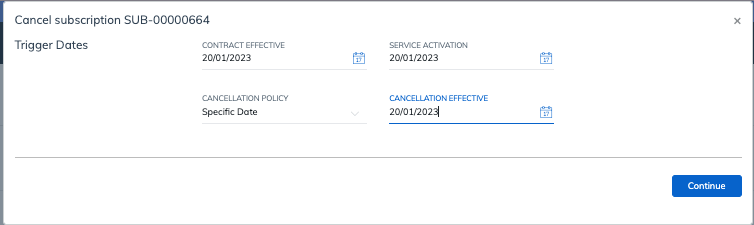
Do not create a new subscription yet.
Click Activate to save the changes.
Navigate back to the account in Zuora and create a new bill run as of the date of cancellation.

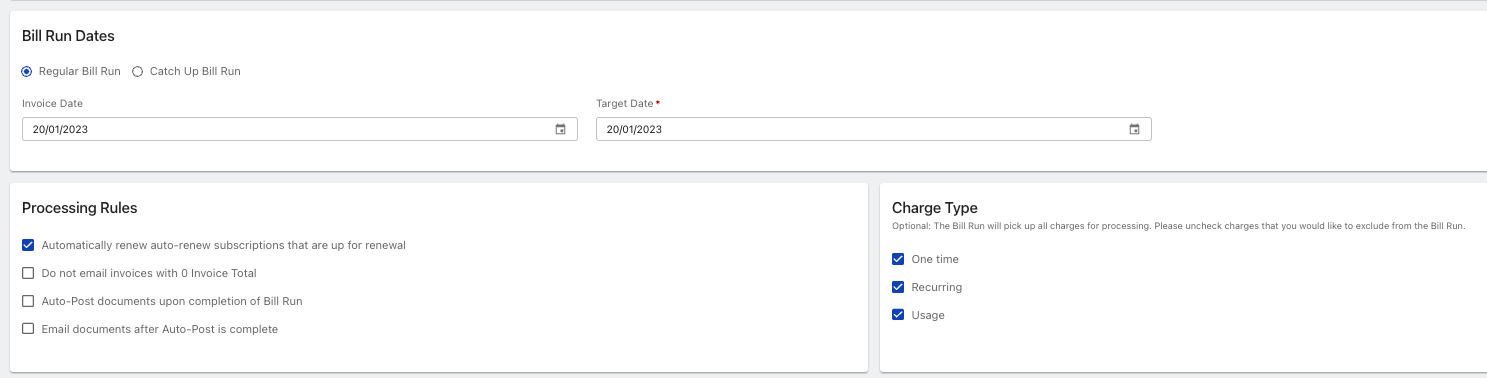
Once the bill run has been processed, process a payment or refund as needed.
Once all payments/refunds/credits are used, the account metrics should show as $0.

Part 2: Change the ownership details
Open the account in Jet Hub and navigate to the Account Manager page.
Under Account Details, hit edit, change the account name and Save.

If this account has a Master account, check if you need to remove them from the Parent/Child structure. If you do, do this now.
Click into the Account Contacts tab and update the contact details for the account.
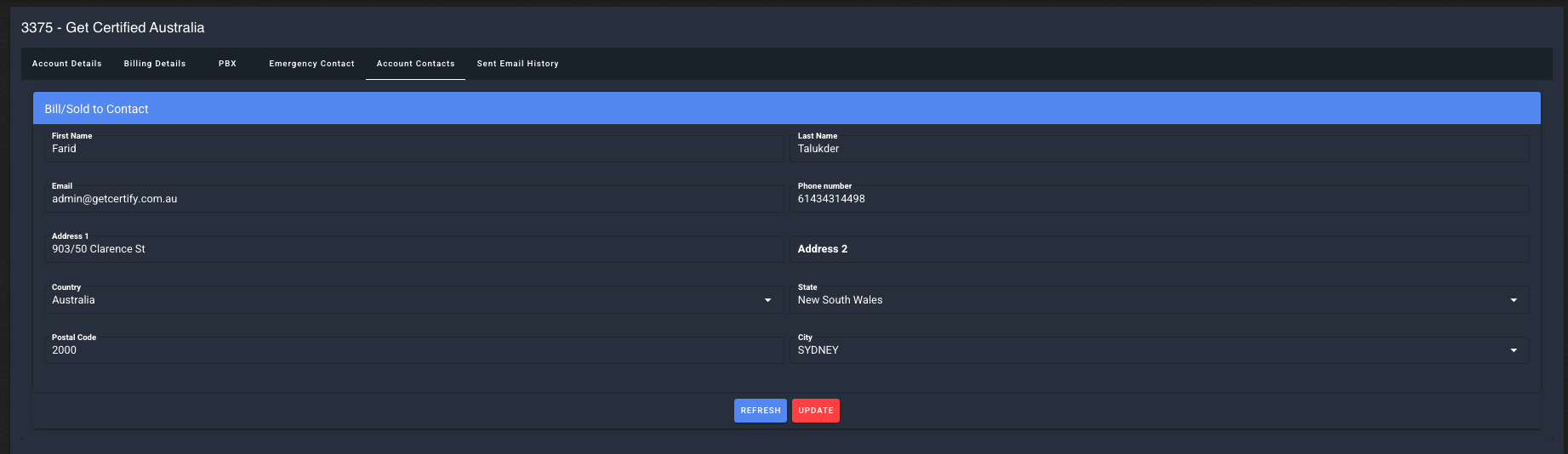
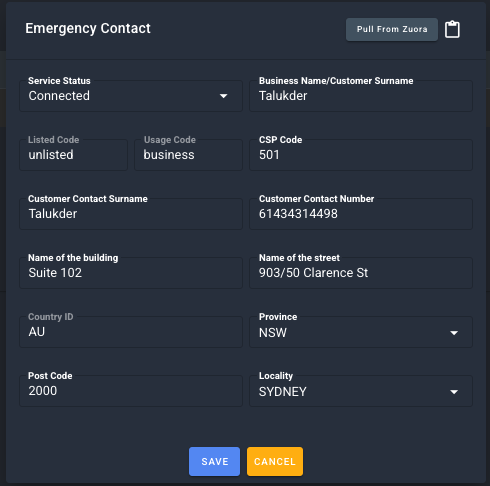
Click on the Emergency Contact tab and select Update Contact.
Choose Pull From Zuora and save with the updated details.
Navigate to the Jet Hub Users page. Remove the old owner's access to this account and ensure the email of the new owner has full access to all features.
Part 3: Create new owner's billing
Navigate to the account in Zuora and click Create Order.
Create a new subscription with activate date set to the changeover effective date.

Use the details on page 2 of the Change of Ownership form to set up the new charges.
At this point, cross reference that these allocations match the old subscription, and match what is set up in Jet Hub.

Once done, click Activate.
Open the account in Jet Hub, navigate to the Invoices and Payments page. Add the new payment details and make this the default payment method.
Remove all other payment methods.
Open the Billing and Payment info in Zuora and change their Bill Cycle Day to be TODAY's date.

Head back to the account's page in Zuora and select create bill run again.
Create a new bill effective the date of cancellation.
Note - if you did a refund to the previous owner, the new bill run amount should roughly match this amount if done correctly.
Post the bill run and process a payment against the new invoice.
Part 4: Change billing dependencies in Jet Hub
Navigate back to the account's page in Zuora and copy the subscription number of the new subscription (it should be the only one active).
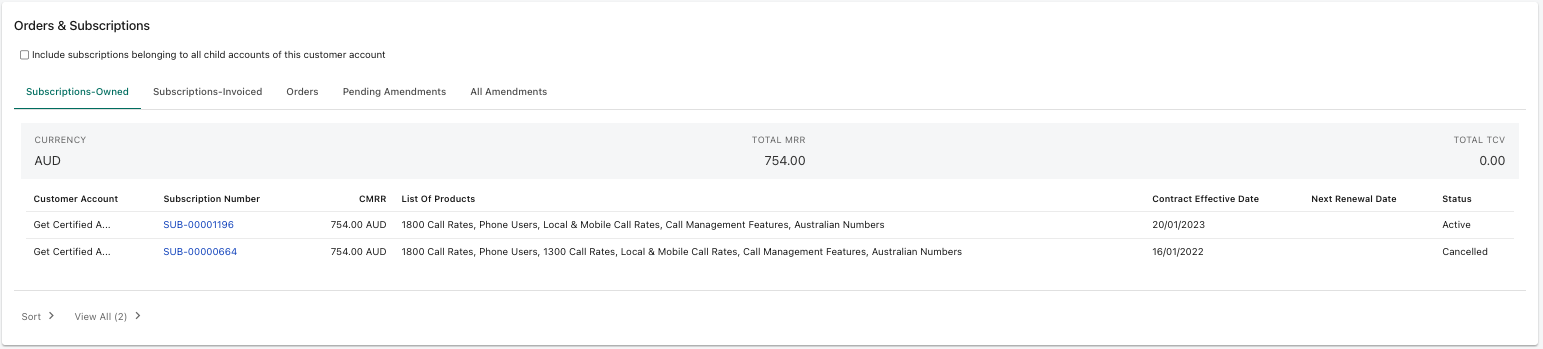
Open the account in Jet Hub, head to Account Manager and click the Billing Details tab.

Select Add and enter the new subscription number.

Once it appears in your list, hit Refresh next to the new sub.

Click into the PBX tab, and select Edit PBX.
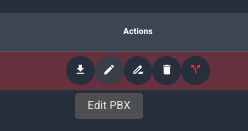
Change the subscription linked to the PBX to the new subscription number.
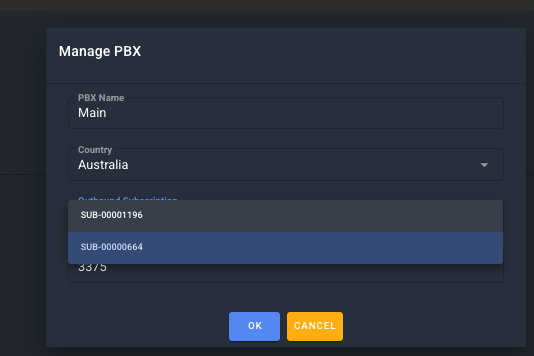
Navigate to the Phone Numbers page and select every number on this account.
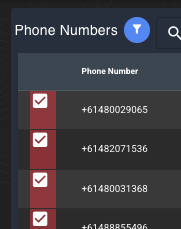
Select Change Subscription in the top right, and select the new subscription number.

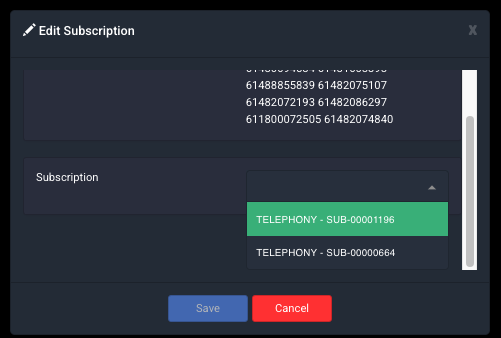
Once you have saved this, all numbers should show the new subscription number linked.
Head back into the Account Manager -> Billing Details page and delete the old subscription.
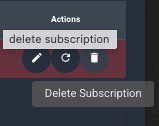
Note: if you have not fully completed the PBX and Phone Numbers steps above, you will see an error. Subscriptions cannot be deleted until they are no longer in use by any services.
The change of ownership is now complete.
Notify both owners that the change has been processed.