Before conducting this process, you should have the following:
- Admin access to Zuora
- Authorisation to process from Bella, Matthew or Justin
Credit Card refunds
- Refunding a payment with no invoice changes
- Refunding a payment with adjusting/crediting the invoice
- Refunding a credit balance
Manual payment refunds
Refunding a payment with no invoice changes
This process is used when we need to refund a payment, but there are no changes needed for the invoice.
Once this refund has been processed, the invoice that this payment was previously applied to will now require a new payment for the amount refunded.
Open the account in Zuora, navigate to the account's payments and click the payment number that needs to be refunded.

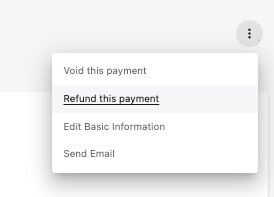
Click the 3 dots in the top right of your payment information page and click refund this payment.
Ensure your refund type is set to Electronic Refund.

If this refund is for the entire invoice amount, no further changes are needed.
If this is only for a partial refund amount, please enter the actual refund amount in the bottom right under the section called Transaction(s) associated to the Original Payment

Click Create Refund.

The invoice(s) this payment was previously applied to will now be outstanding for the balance of the refund you just processed.
You're done!
Refunding a payment with adjusting/crediting the invoice
This process is used when we need to refund a payment and adjust an invoice. This is typically used if we need to remove a certain charge from an invoice, or if we are refunding the client for the entire invoice (eg: due to mistaken charges or a refund for service issues or delays).
Once this refund has been processed, the invoice that this payment was previously applied to will have the balance adjusted to still reflect $0 after the refund.
Open the account in Zuora, navigate to the account's payments and click the payment number that needs to be refunded.
Click the 3 dots in the top right of your payment information page and click refund this payment.
Ensure your refund type is set to Electronic Refund.
If this refund is for the entire invoice amount, no further changes are needed.
If this is only for a partial refund amount, please enter the actual refund amount in the bottom right under the section called Transaction(s) associated to the Original Payment.
Ensure this amount reflects the actual list price with GST included.
Eg: a single $35 cloud mobile user is actually charged at $38.50 -- $35 for the product and +10% or $3.50 for the GST amount.
When in doubt, use a calculator.
Click Create Refund And Adjust Invoice Items.

The Invoice Adjustment page will now open, displaying a breakdown of all charges. Each charge will have two amounts, one for the product price, and one for GST - and both will need to be refunded/adjusted.
You can now adjust your invoice items as needed.
Important - the refund value should match the amount you just refunded from the customer in the previous step.
Adjust price for all of an invoice item (single product(s))
Adjust price for part of an invoice item
Adjust price for all products (entire invoice)
Adjust price for all of an invoice item (single product(s))
If you are only refunding a single invoice item - for example a single Jet Phone user charged at $5.50 + $0.55 GST, you can just select the tickbox next to this item. The full amount will now show in the value to the right of the product name. 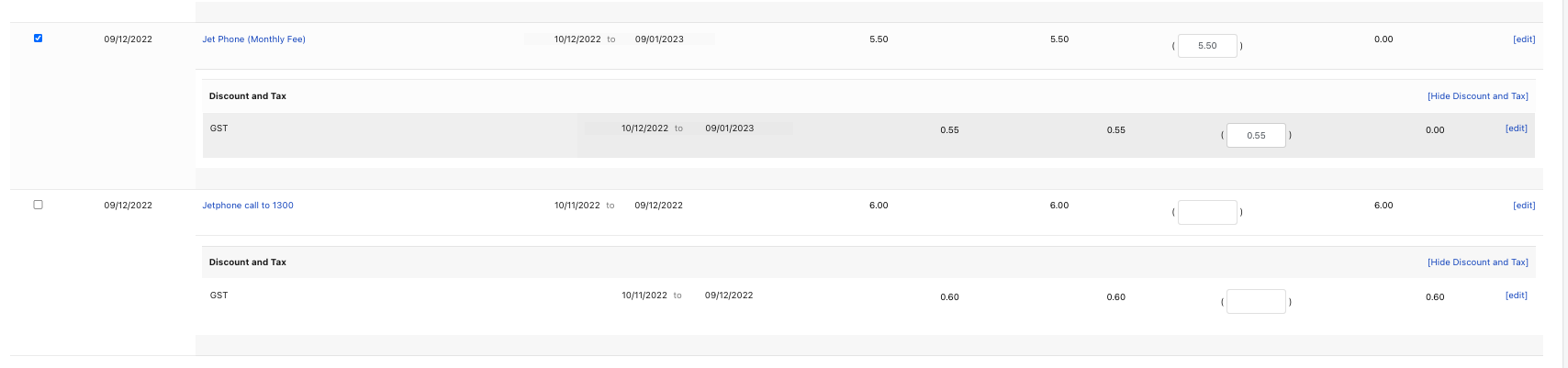
Notice how the only item selected is the Jet Phone. In this scenario, only the Jet Phone will be adjusted, and any other charges (such as a Jetphone call to 1300) will remain on the bill.
Adjust price for part of an invoice item
If this is a partial refund (eg: a refund of 25%), you would adjust the price to reflect this.
The price to enter will be the refunded value, meaning the 25% that is to be refunded.
For a $5.50 Jet Phone, you would enter the value of $1.38 ($0.13 GST), making the new price of this product $4.12 ($0.42 GST).
Adjust price for all products (entire invoice)
If all charges are being adjusted to 0, go through the invoice and select every product with a checkbox available.
Once our adjustments have been made, review the summary down the bottom of your page.
The Current balance will show the original balance of the invoice.
The Adjustment balance should be the value of your refund.
The New balance of the invoice should be $0.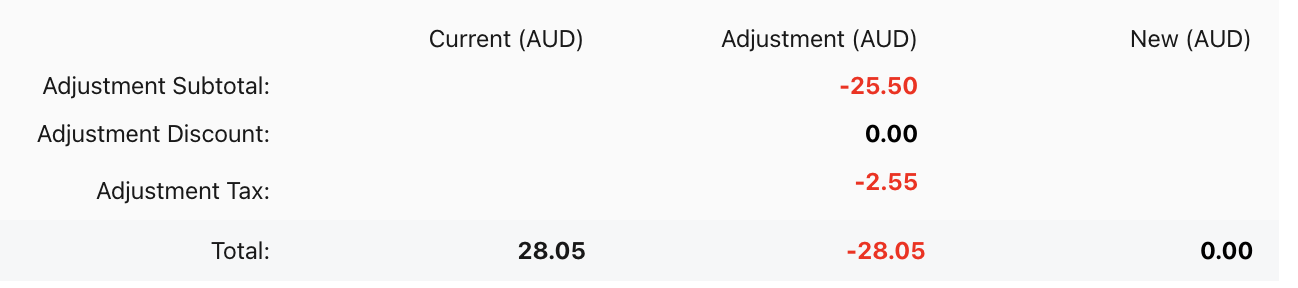
If it is not, go back up your page and adjust your metrics until it is. Do not leave this page with the balance as anything other than $0.
Once your balance shows as $0, choose Adjust Invoice Items.

You're done!
Refunding a credit balance
This process is used when we have an account in credit, but no invoices to apply this balance to (eg: the account has been cancelled).
To complete this process, you should have an account that has a negative account balance, with invoice value as $0.
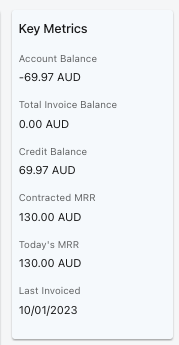
If this is an account cancellation, all final bill runs need to be completed and any negative invoice values have been transferred to the credit balance.

We cannot process a direct refund for a credit balance. The process we need to undertake is to process a refund against one of the other payments on the account for the value of the credit balance, and then use the credit balance to "pay" the new value owing on the invoice.
Under this example, we will use a credit balance example of $38.49 against a payment that was $44.
Before we start, make sure you write down the credit balance value so you can cross check in later stages.
Open the account in Zuora, navigate to the account's payments and click into the most recent successful payment number. The payment value should be higher than the credit amount we need to refund.
Click the 3 dots in the top right of your payment information page and click refund this payment.
Ensure your refund type is set to Electronic Refund.
Enter the credit balance amount in the bottom right under the section called Transaction(s) associated to the Original Payment.
Click Create Refund.
DO NOT CHOOSE ADJUST INVOICE ITEMS.
Navigate back to the account page in Zuora.
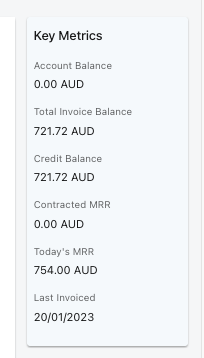
Your Account Balance should be $0, but should now show a Total Invoice Balance owing that matches the Credit Balance on the account.
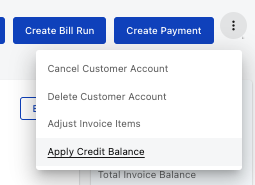
Use the 3 dots in the top right of your page to Apply Credit Balance.
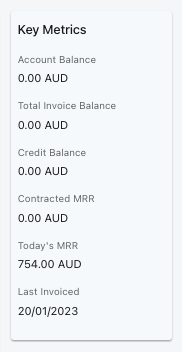
After using your credit balance to "pay" the invoice value, your account should be at $0 in all fields.
You're done!
Refunding a manual payment
Manual payments cannot be processed by Jet support staff, they must be sent to Cathie Robilliard, our accountant.
You will need to send her an email request from your Jet email and include the following information:
- Amount of refund
- Reason for refund
- Client's bank details
- Client's bank (Westpac, CBA, ANZ, etc)
- Bank account Name
- Bank account BSB
- Bank account Number
Once Cathie has confirmed the refund is processed, notify the customer as needed.