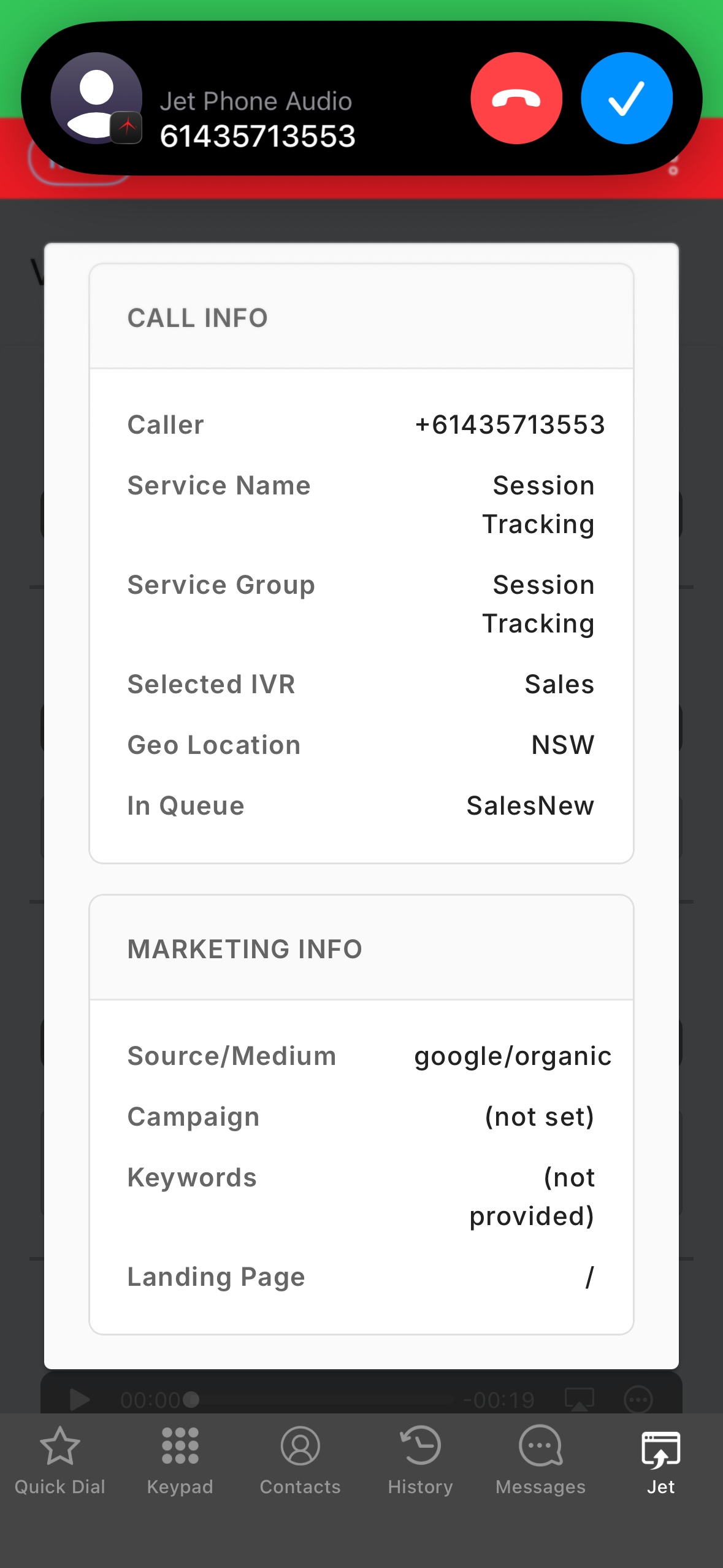
You can view the call information via the Jet tab on both desktop and mobile.
You will be able to see which number was called, which queue they have entered and IVR selections, along with a range of other data, including the marketing source of the phone calls.
Here is what that screen looks like: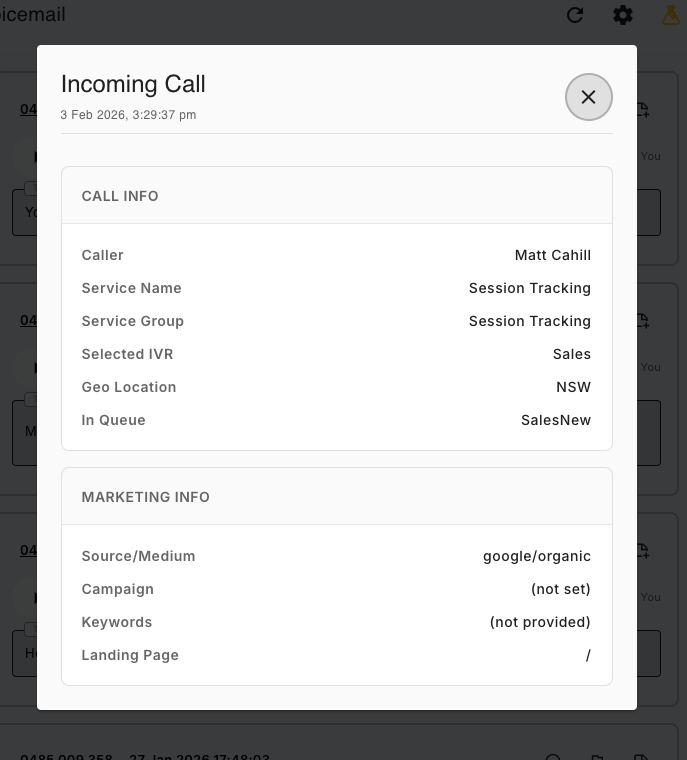
You can dismiss this menu by clicking the X in the top right corner.
The Table below outlines all possible fields in the live call pop screen. On your own pop screen, you may not be presented with all fields as factors such as your callflow & call tracking setup will determine which information can be shown.
If you have any questions about what you're viewing on your own pop screen or would like to know how you can see all these fields, please contact us
Detail |
Description |
| Caller | Which number they are calling from. |
| Service Name | The service name of the number being called |
| Service Group | Which Service group this number belongs to |
| Selected IVR | What IVR options were picked by the caller |
| Geo Location | What Geo Location they are from |
| In Queue | What Queue they have been put into (if any) |
| Source/Medium | Source/Medium of calls from website traffic |
| Campaign | Which Campaign this came from, if any |
| Keywords | Keywords used by the customer to find your website (google Ads only) |
| Landing Page | The website page the customer first visited |
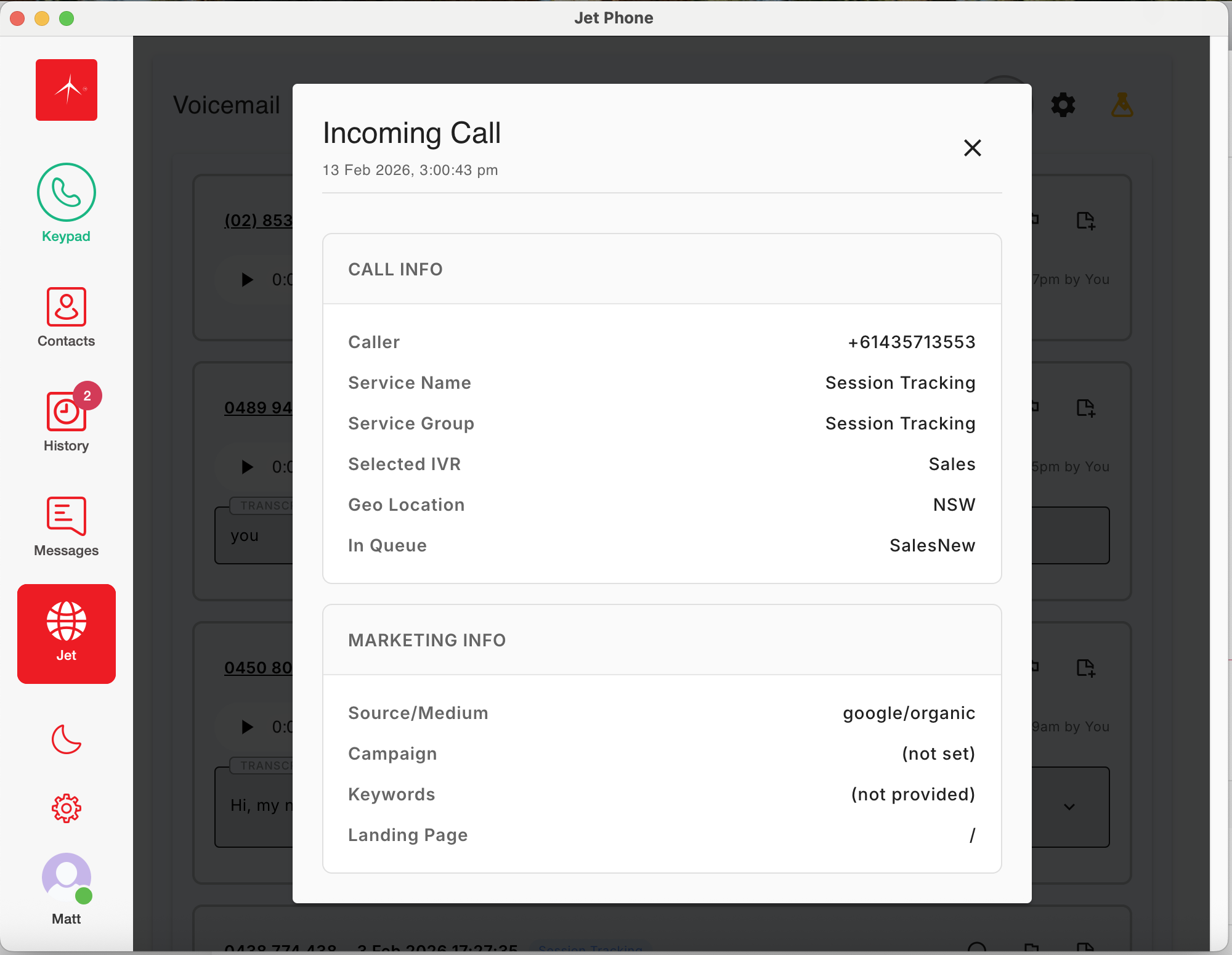
This is what your live call pop screen will look like on the desktop app:
This is what your live call pop screen will look like on the mobile app: