Your answering point is the number or Jet phone user that calls get diverted to on a callflow within your Jet Interactive account. Answering points are changed through the dial widget on a callflow.
To use multiple answering points for an inbound number please see: Creating Callflows for Inbound numbers
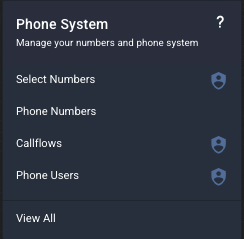
Step 1 - Under the Phone System menu, select Callflows.
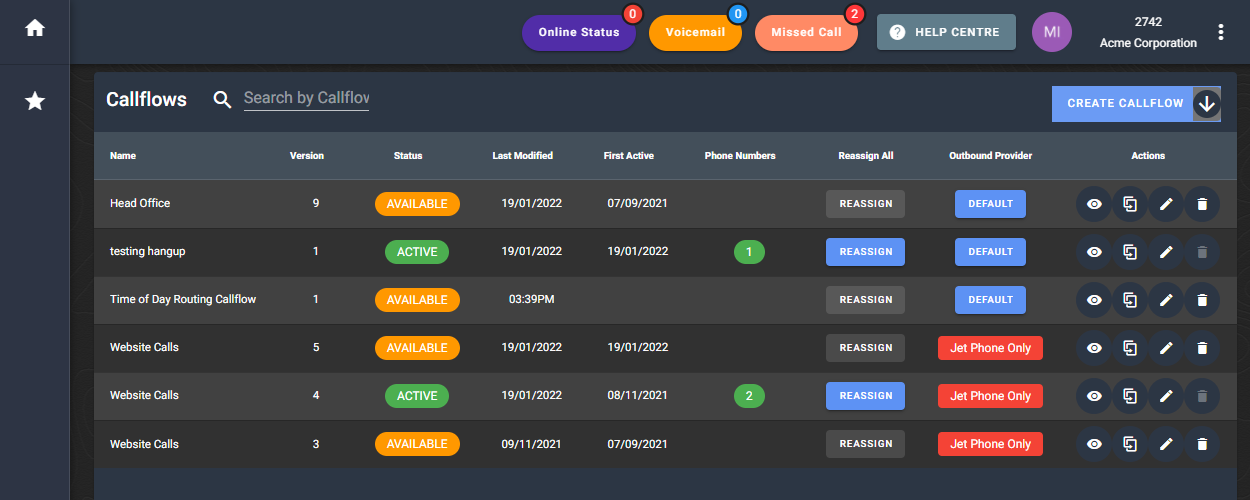
Step 2 - Find the callflow you want to modify and click the edit button.
Step 3 - When your callflow loads, click on the dial widget.
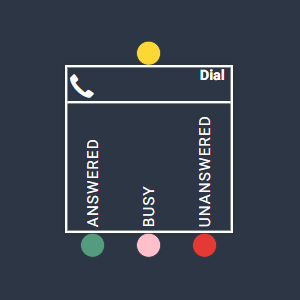
You can change the answering point to any mobile or landline number OR you can change it to a Jet phone user.
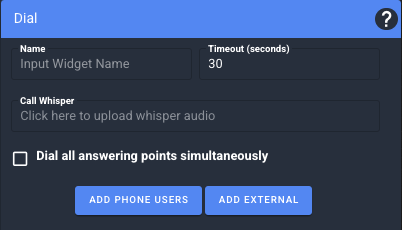
Step 4 - To change to a mobile or landline number, click Add External then enter the number including areacode, name the number and click the Add.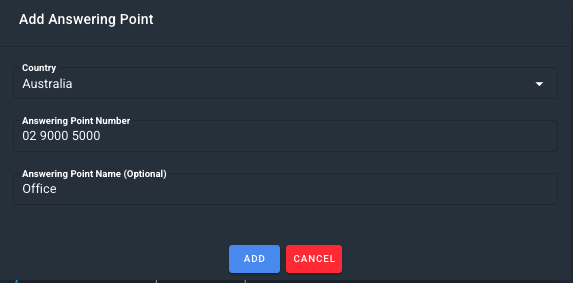
To change to a Jet phone user, click Add Phone User then select one or more users that you want to add in as the answering point.
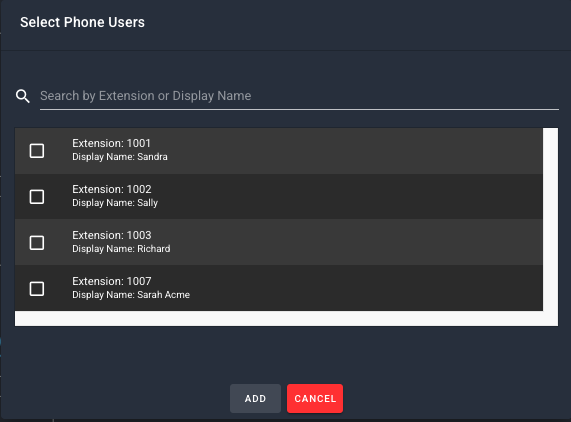
If you configure multiple answering points, these will automatically dial in sequential order. You can click and drag to reorder your answering points. If you want all answering points to dial together, check the box to enable this.

You can remove any existing answering point by clicking the delete icon next to the number you wish to remove.

Step 5 - Click anywhere on the canvas to save the widget. Your callflow should now be at 100%.

You can save the callflow as a draft OR save as available to make the change live on all associated phone numbers. Saving your callflow automatically creates a new version so that you can easily roll back any changes.