You can filter your reports for Inbound Calls and Outbound Calls by using the filter button on each page.
The filter button looks like this:

Inbound Calls
Here are the options for filtering Inbound Calls.
A breakdown of each option can be found in the table below.
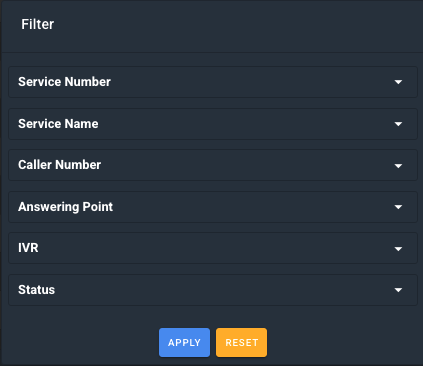
Field |
Description |
Service Number |
This is the number on your Jet account that the caller dialled. |
Service Name |
This is the name you have given the number on your Jet account that the caller dialled. You can change this here. |
Caller Number |
This is the caller's number. |
Answering Point |
This is the endpoint (known as the answering point) that the caller ended up at in their callflow journey. This could be an external number or a Jet Extension. You can change a configured answering point here. |
VIR |
This is the IVR option the caller pressed during their callflow. If you have multiple IVRs, this will display as the last option the caller selected. You can update your IVR settings here. |
Status |
This is the status of the call. There are 4 different statuses that will be displayed -
|
 The call was answered or forwarded to an external number.
  The call was not answered. It has been sent to a voicemail or Hang Up widget.
 The call was not answered. It has either timed out in a queue or the extension was unavailable.
  The caller has hung up before the call has dialled an extension. Eg. The caller has hung up in a
 Outbound Calls
Here are the options for filtering Outbound Calls.
A breakdown of each option can be found in the table below.
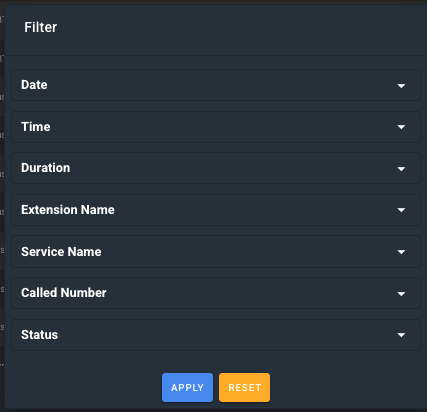
Field |
Description |
Extension Name |
This is the name of the Extension that made the call. You can change this here. |
Service Name |
This is the name you have given the number on your Jet account that was used as the caller ID for the extension making the call. You can change the service name here. You can change a caller ID here. |
Called Number |
This was the number that was dialled. |
Status |
This is the status of the call. There are 2 different statuses that will be displayed -
|