This user guide will outline the basic features of Jet Interactive's reporting platform, such as date range picker, filters, downloading reports and navigating through the reports.
Overview
Jet Interactive's reporting platform includes a range of reports and dashboards for business owners, call centre managers and marketers.
The reporting is broken down into different categories to help you classify your calls and manage your data.
Breakdown of Report Types
Menu |
Sub Menu |
Report Type |
Description |
| Home | Action Bar | Online Status | View the online status of your agents and queues. Only accessible if you have Jet phone users on your account. |
| Home | Action Bar | Voicemail | |
| Home | Action Bar | Missed Calls | |
| Home Reports |
Action Bar Activity |
SMS | View a list of SMS sent and received by agents. Only accessible if you have Cloud Mobile services on your account. |
| Reports | Activity | Inbound Calls | View a list of inbound calls against your account & listen to call recordings. |
| Reports | Activity | Outbound Calls | View a list of outbound calls against your account & listen to call recordings. |
| Reports | Behaviour | Inbound Overview | Dashboard view of inbound call activity. |
| Reports | Behaviour | Callflow Behaviour | View the full caller journey through your callflow. |
| Reports | Behaviour | Service Level | Report on your time to answer calls. |
| Reports | Behaviour | Abandonment Rate | Report on abandonment rate of callers. |
| Reports | Behaviour | IVR | View a breakdown of calls by their IVR selection. |
| Reports | Call Tracking | Customer Service | View a breakdown of customer service phone numbers. |
| Reports | Call Tracking | Web Session Calls | View a list of inbound calls against your account with full visitor path. |
| Reports | Call Tracking | Online Call Tracking | Dashboard view of online activity leading to calls. |
| Reports | Call Tracking | Session Tracking | Breakdown of calls from your website. |
| Reports | Call Tracking | Off Page | Breakdown of calls from static off page numbers. |
| Reports | Call Tracking | Offline Tracking | Breakdown of calls from static offline numbers. |
| Phone System | Troubleshooting | Devices | |
| Phone System | Troubleshooting | Call Quality | |
| Phone System | Troubleshooting | Call Network |
Please note - Call Tracking report types are specifically tailored for accounts that have Call Tracking services set up for Single Source and Session Tracking purposes. If you do not have this setup you will not see any data in your call tracking reports.
Definitions
In the various reports, there are metrics that are reported on. Below is a list of the reporting items that appear across the reporting platform with definitions.
| Definitions | |
| Answered | Any call that has been answered by either an user picking up the phone or by a phone system not run by Jet Interactive. This could be your IVR, queue or answering service picking up the call. |
| Cancelled | Any call where the caller has hung up the call before it has been answered. |
| Unanswered | Any call that has reached the end of it’s set ring time without being answered. |
| Busy | When there is not enough capacity on your phone lines, but callers are still trying to get through. |
| Duration | The duration is the length of a call, this is displayed in minutes and seconds throughout the reports. |
| First-Time Caller | A call from any phone number that has not made a call within the date range selected for a given report. |
| Returning Caller | A caller that has previously made a call within the date range selected for a given report |
| Online Call | A call from a phone number that has been given the label as online. This label is set when configuring the phone number. |
|
Customer Service Call |
A call from a phone number that has been given the label as customer service. This label is set when configuring the phone number |
|
Offline Call |
A call from a phone number that has been given the label as offline. This label is set when configuring the phone number. |
|
Date |
The date that the call occurred in AEST. |
|
Time |
The time that the call occurred in AEST. |
|
Service Name |
The label given to each phone number. This label is normally used to describe where the number is used or advertised and can be changed at any time through the Jet portal. |
|
Caller Number |
The caller ID of the party that initiated the call. |
|
Answering Point |
The phone number, extension number or phone user that answered a phone call. |
|
Call Status |
The call status describes whether the call has been answered, cancelled, unanswered or busy. |
|
Auto Attendant |
The auto attendant or IVR displays the option that a caller has pressed on your phone menu if you have an IVR configured on your Jet phone numbers. |
|
Number Category |
Displays whether a phone number has been configured as an online number, offline number or customer service number. |
|
Number Type |
Displays the type of number that has been set. This varies based on the number category. |
|
Referrer |
The referring website from a session that lead to a phone call. |
|
Tracked Website |
The tracked website is the website from a session that lead to a phone call |
|
Landing Page |
The first page a customer viewed when entering your website on a session that lead to a phone call. |
|
Source |
The source of the traffic to your website from a session that lead to a phone call. |
|
Medium |
The traffic medium to your website from a session that lead to a phone call. |
|
Campaign |
The campaign set in your UTM tag from a session that lead to a phone call. |
|
Keyword |
The keyword from your paid search campaign that has lead to a phone call. |
|
GA Client ID |
Is the unique ID that google assigns to each session that visits your website. |
Navigating to your reports
The different reports and dashboards are accessed through the main menu in the jet interactive portal. To access reports you will first need to go to portal.jetinteractive.com.au and log in.
Step 1 - From the home screen, select the Reports menu.
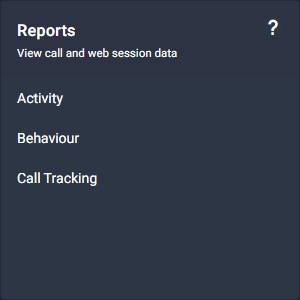
Step 2 - You will now see these menu. There are multiple reports that can be run.
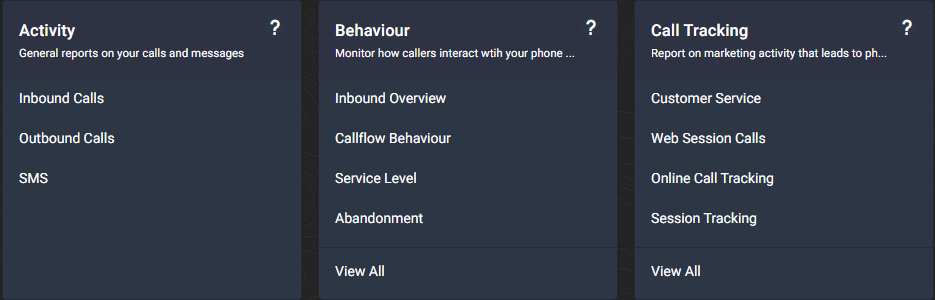
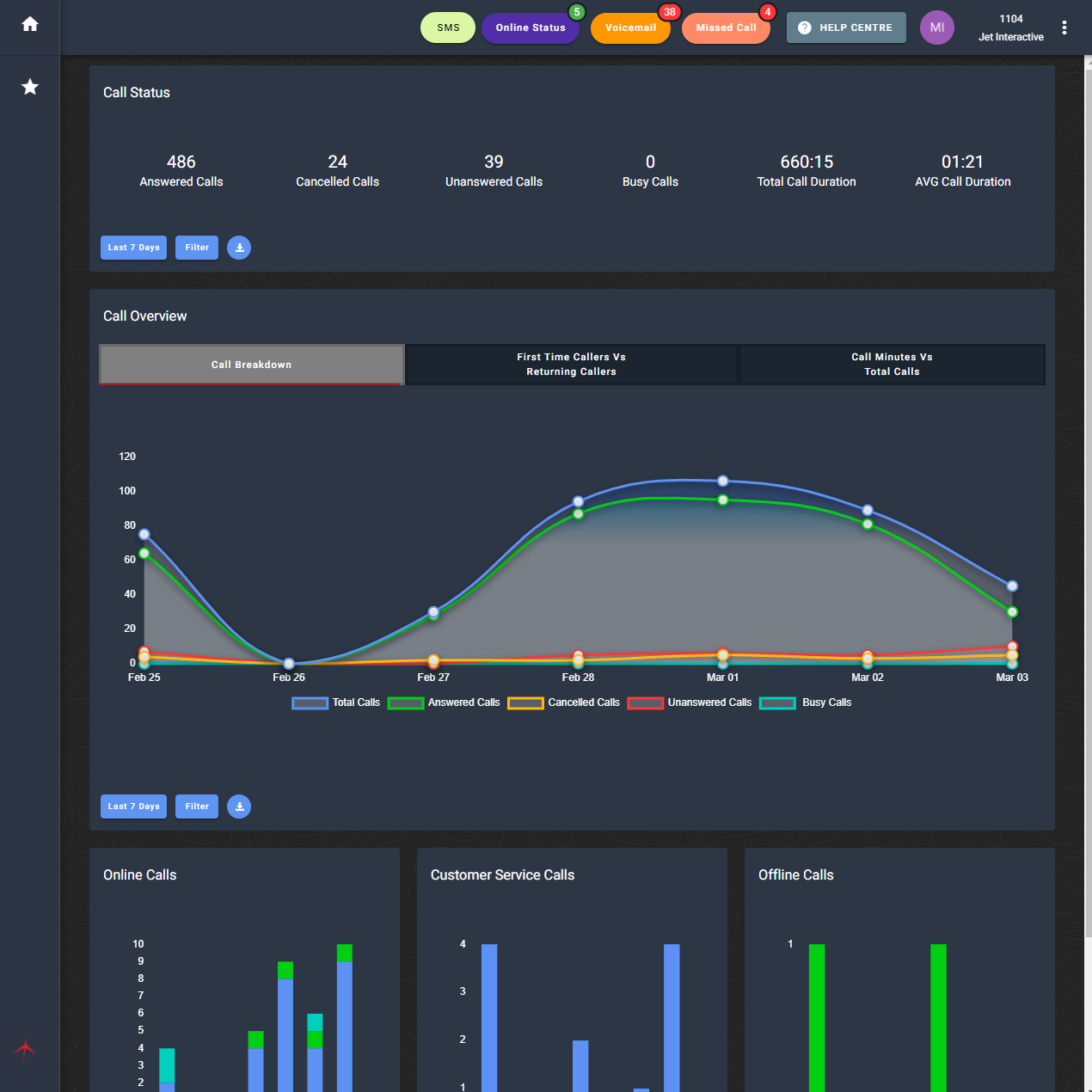
Step 3 - Select the report you would like to view.
Restrictions
Reporting restrictions are set up by Admin Users to limit the access to certain reporting features, such as call recordings, from other users within the Jet Portal. For more information please see here: Reporting Restrictions.
Filters
Filters are present throughout the Jet reporting platform. Filters can be used to select the date range for each report or to select specific phone numbers, users, traffic sources & many other metrics.
Please visit our specific Reporting Filter articles to find the information you need: