The most common reason for an application to not be connecting is due to Network connectivity issues. This does not always mean you are not connected to the internet but could mean this internet is not optimised to be using a Jet app.
Please follow the steps below to troubleshoot your Jet Phone. It is important that you follow these steps in the order they are listed, as each step depends on the result of the one before it.
If you are seeing an error code, please click here.
Please select your device type below for the steps required:
Troubleshooting for iOS
There are 6 easy troubleshooting steps you can try on iOS before contacting support.
At the end of every step, please test your phone by placing an outbound call via your Jet Phone app to any number not with Jet Interactive. Remain connected for 5 seconds before hanging up.
(Please note, this number should NOT be the mobile number that is associated with the device you are using to test).
Then place an inbound call through your services, and try to answer on your Jet Phone app.
If any of these calls are unsuccessful, move on to the next step.
STEP 1. DISABLE WI-FI CALLING
For all devices, please ensure you have Wifi Calling disabled.
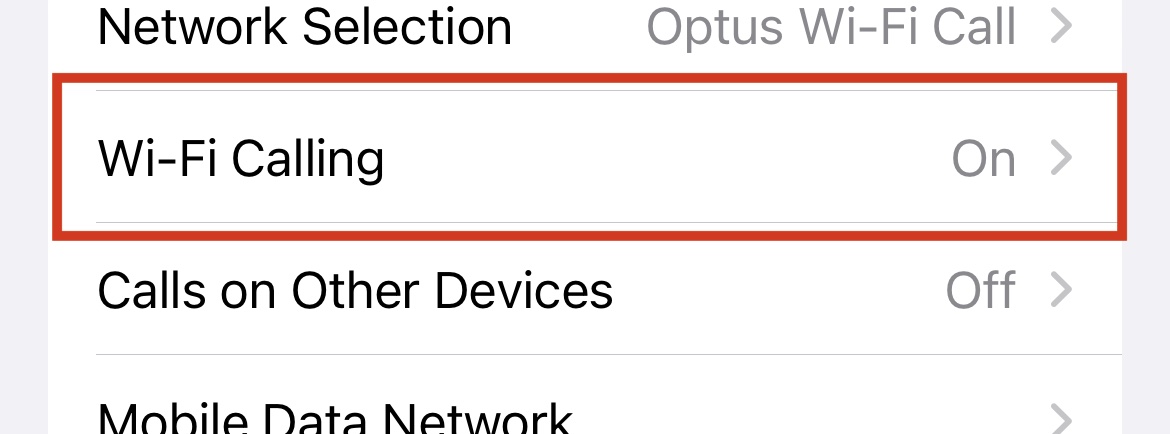
Go to your phone Settings, select Mobile, click into Wifi Calling and toggle this to off.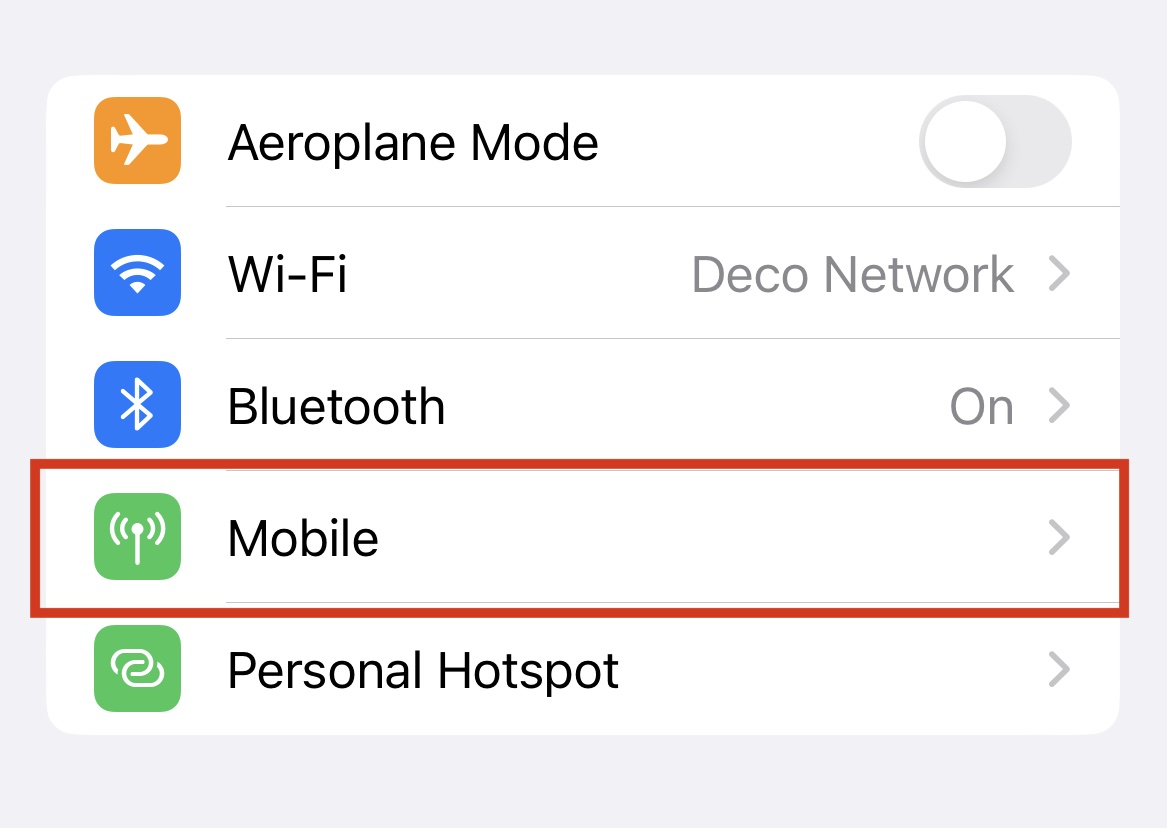

STEP 2. CHECK APP NETWORK PERMISSIONS
Please ensure you have the Local Network permissions enabled.
Go to your iPhone Settings, scroll down until you see Jet Phone, then ensure the following 5 permissions are enabled:
Local Network, Microphone, Notifications (all), Background App Refresh, and Mobile Data.
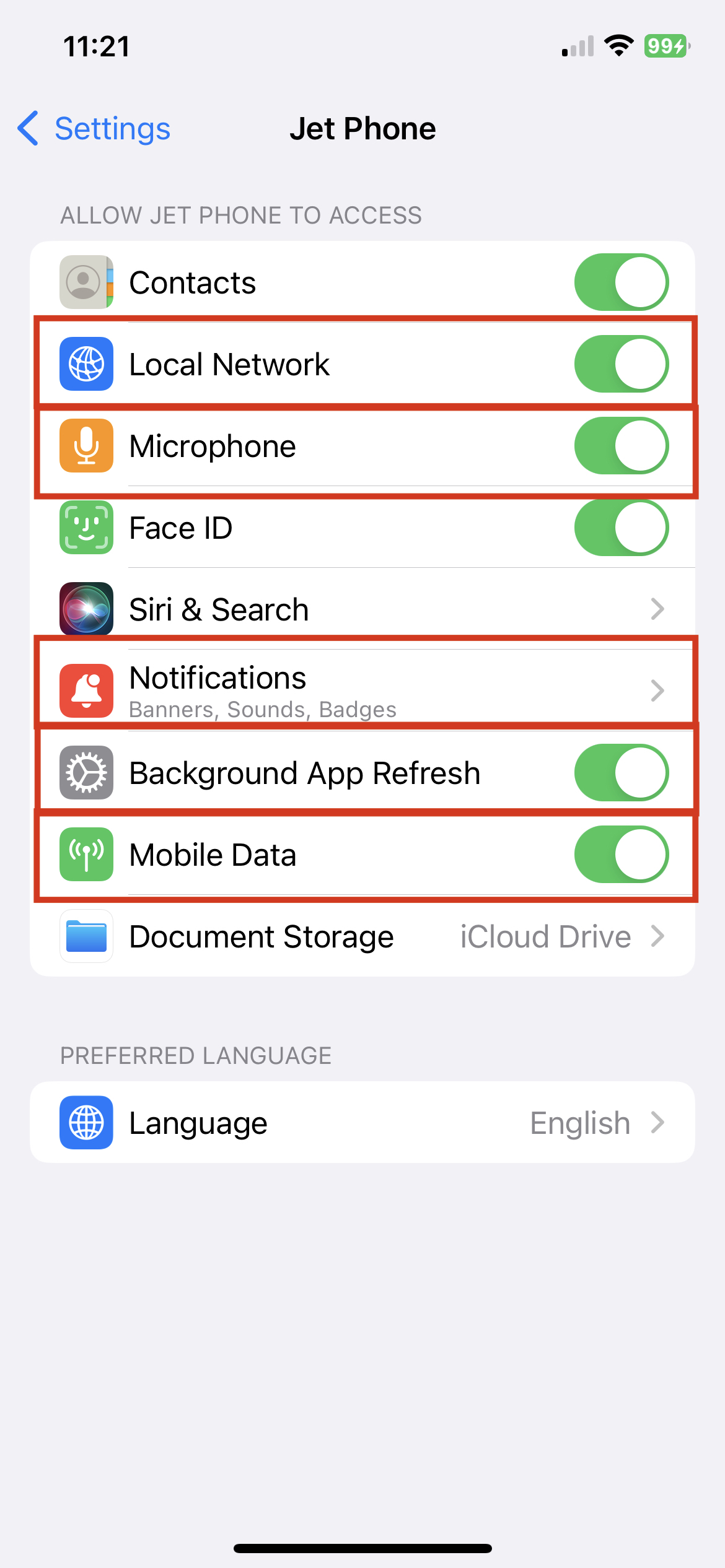
Please note - some versions of iOS do not show Local Network as a permission.
STEP 3. RECONNECT YOUR APPLICATION
Open the Jet phone application, head into Settings (top left), select Account and use the toggle to disable then enable your device.
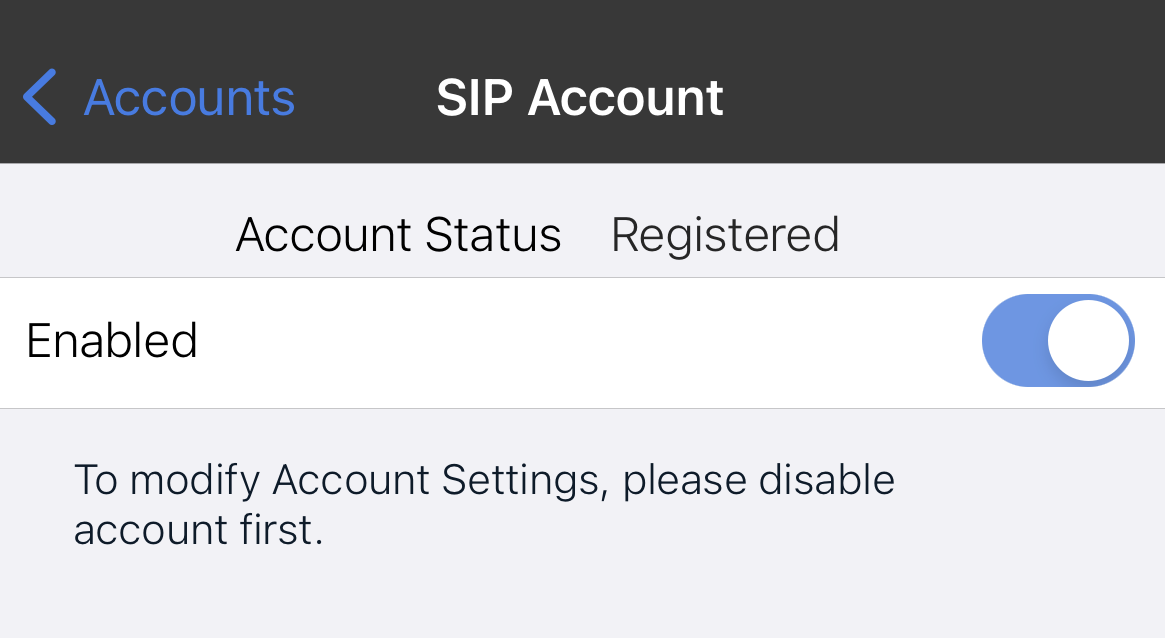
This will force the device to reconnect to your phone's network connection.
If this was successful, your connection has just timed out.
This can happen if your phone's battery dies or if the phone has been turned off at any point. If your device restarts for any reason, just repeat this step in the app to ensure the connection has been re-established.
STEP 4. CHECK YOUR NETWORK
Try changing the Network your device is connected to. For mobile devices, this means using your mobile device's data connection (3G/4G/5G) instead of Wifi.
The most common issues are to do with your wifi connection not being optimised to conduct voice calls over the internet. This step is essential to understanding
Go to your iPhone Settings, click on Wi-Fi, then toggle your wifi to off/on.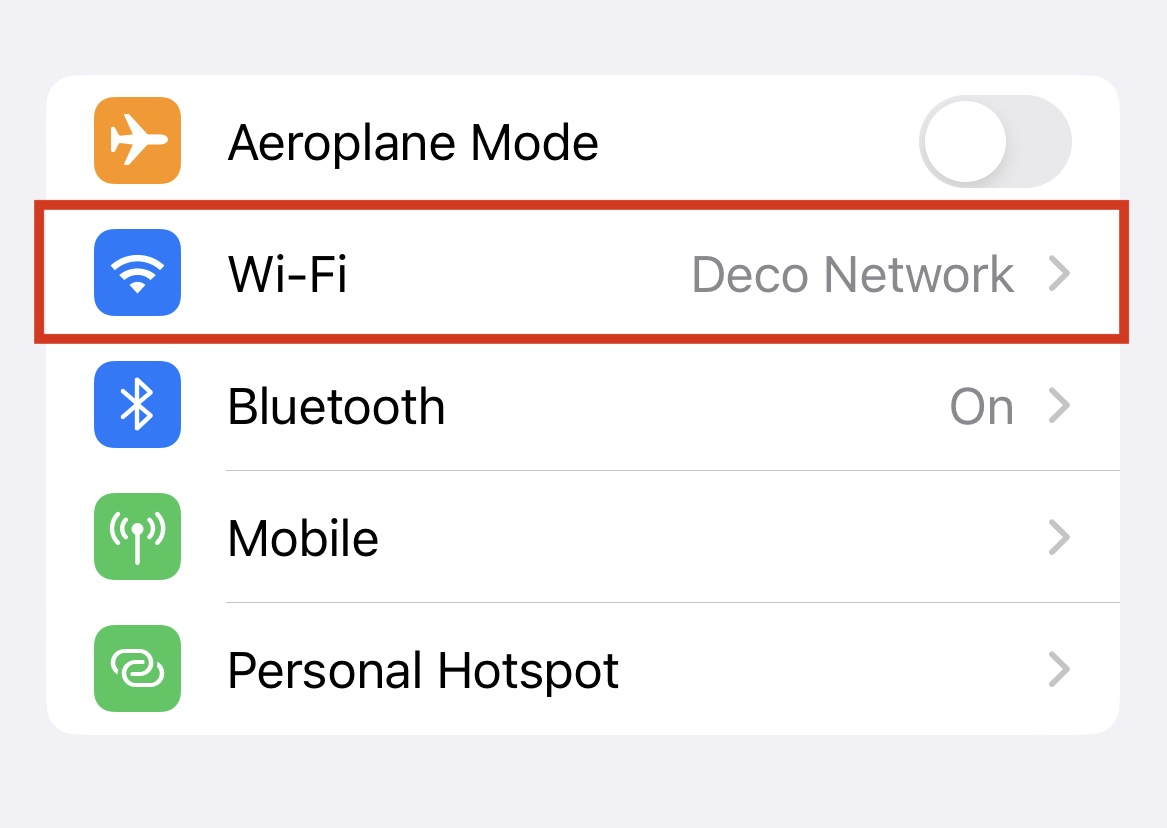

If your test calls were successful over your mobile data but not over wifi, you may have an issue with your network.
If you are unable to use 4G long term and you are still having issues over wifi, please speak to the provider of your internet connection to investigate further. You can find more information here: Call Quality & Network Improvements
STEP 5. CHECK YOUR PHONE USER CREDENTIALS
Log into a Jet Soft Phone on a different device using your existing Phone User details
Try a different device if possible (eg: other iPhone), but also device type (eg: desktop app).
More app download options here.
If this was successful, please check your device permissions (eg: Network, Privacy, etc) and ensure you are running the latest versions of all device software and the Jet phone app.
Check all network settings between the two devices are identical.
STEP 6. UNINSTALL
Uninstall the app from your device, restart the device and then install the app again from the App Store (search "Jet Soft Phone") or go to our Downloads page. Ensure you are accepting every app permission and setup request.
If this works, there may have been an issue between your app and device.
No further action is needed, however, please speak to Jet Support if this issue persists.
Troubleshooting for Android
There are 6 easy troubleshooting steps you can try on Android devices before contacting support.
At the end of every step, please test your phone by placing an outbound call via your Jet Phone app to any number not with Jet Interactive. Remain connected for 5 seconds before hanging up.
(Please note, this number should NOT be the mobile number that is associated with the device you are using to test).
Then place an inbound call through your services, and try to answer on your Jet Phone app.
If any of these calls are unsuccessful, move on to the next step.
STEP 1. DISABLE WI-FI CALLING
For all devices, please ensure you have Wifi Calling disabled.
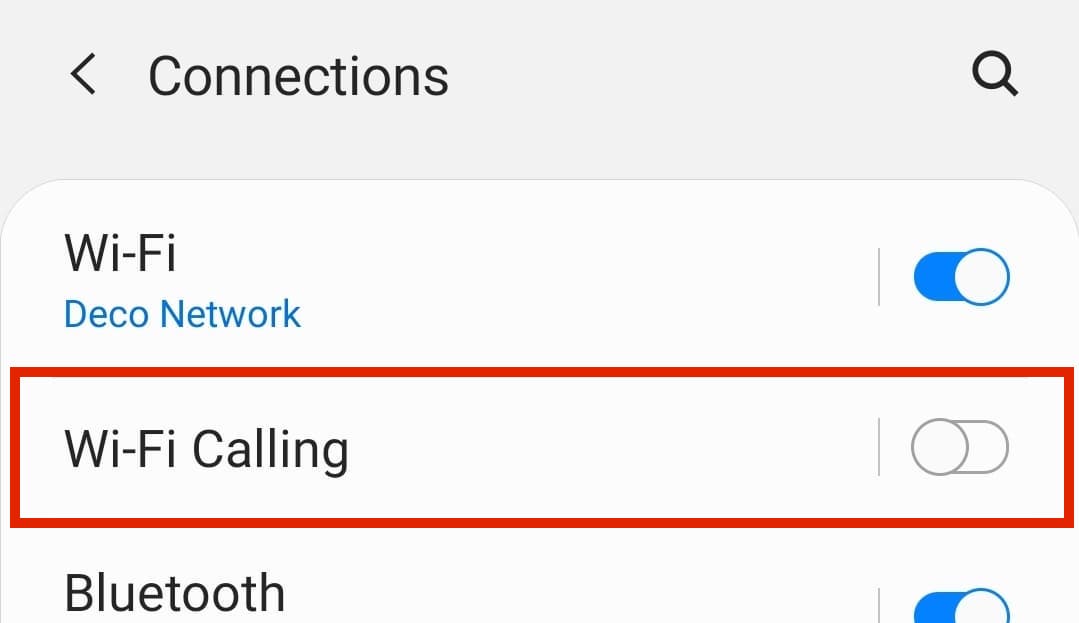
Go to your phone Settings, select Connections and disable Wifi Calling.
STEP 2. CHECK APP NETWORK PERMISSIONS
Please ensure you have the correct permissions enabled on your device.
Open your Android Settings and scroll down to click Apps. Scrolls down again to see the Jet Soft Phone app. Then ensure the following 5 permissions are enabled:
Notifications (all should be on), Permissions (Microphone & Telephone), and Appear on top (On).
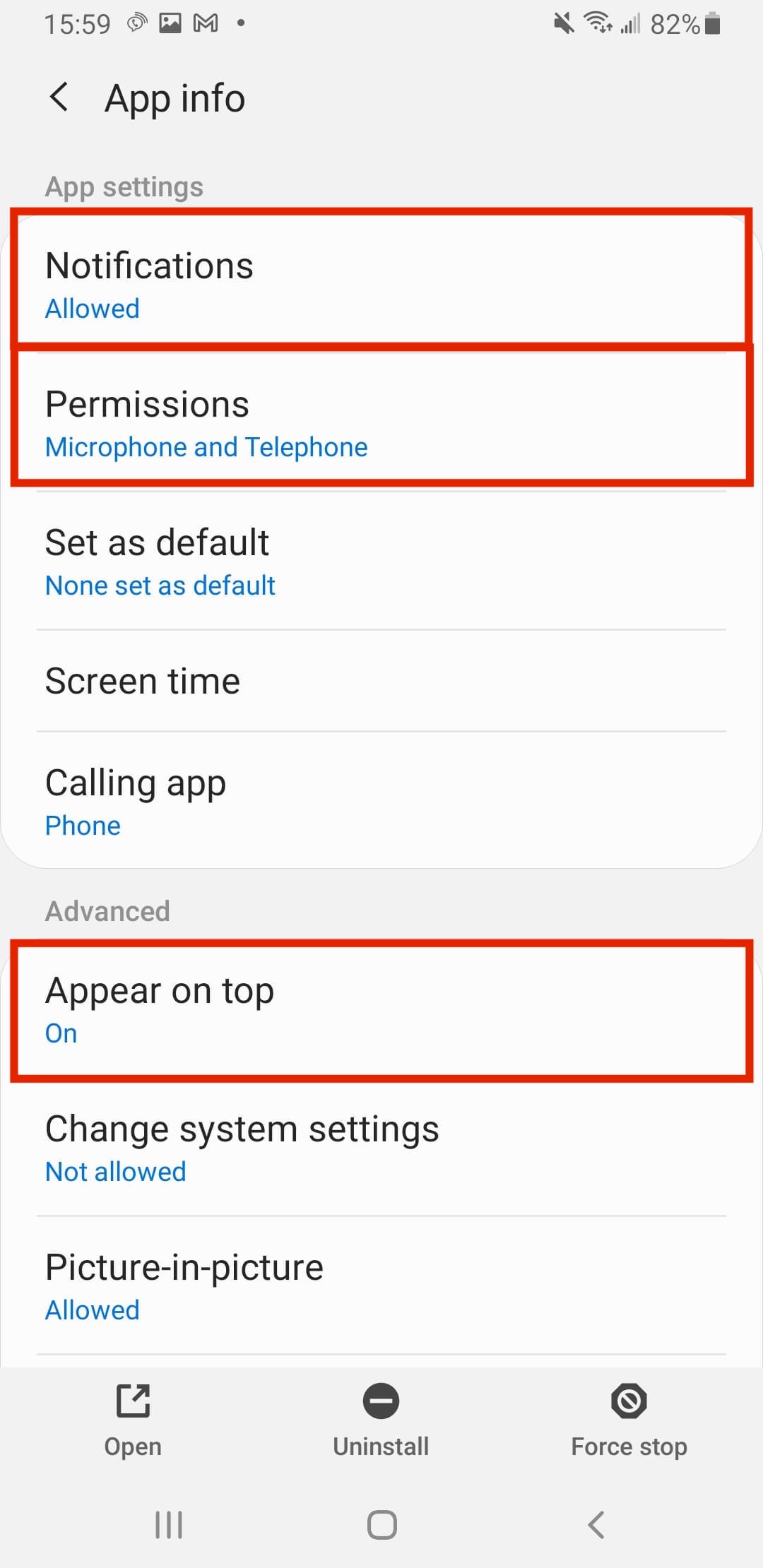
If you are running a newer version of Android software, you may also see an option to Remove permissions if app is unused. This should be disabled.
STEP 3. RECONNECT YOUR APPLICATION
Open the Jet phone application, head into Settings (top left), select Account and use the toggle to disable then enable your device.
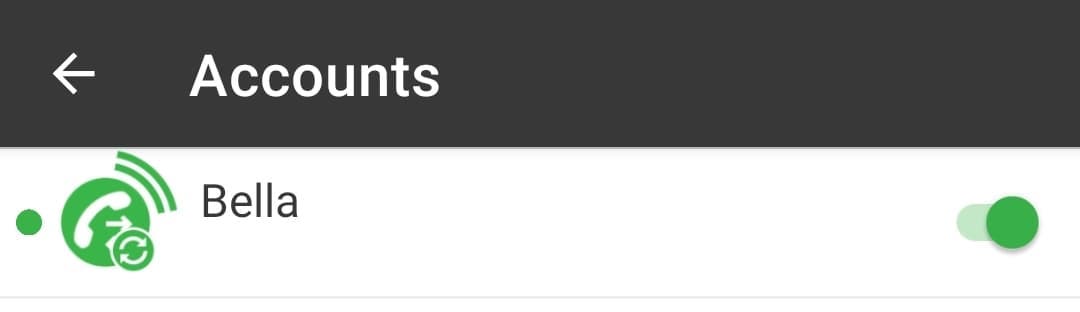
This will force the device to reconnect to your phone's network connection.
If this was successful, your connection has just timed out.
This can happen if your phone's battery dies or if the phone has been turned off at any point. If your device restarts for any reason, just repeat this step in the app to ensure the connection has been re-established.
STEP 4. CHECK YOUR NETWORK
Try changing the Network your device is connected to. For mobile devices, this means using your mobile device's data connection (3G/4G/5G) instead of Wifi.
The most common issues are to do with your wifi connection not being optimised to conduct voice calls over the internet. This step is essential to understanding
Go to your Android Settings, click on Connections, then then toggle your wifi to off.
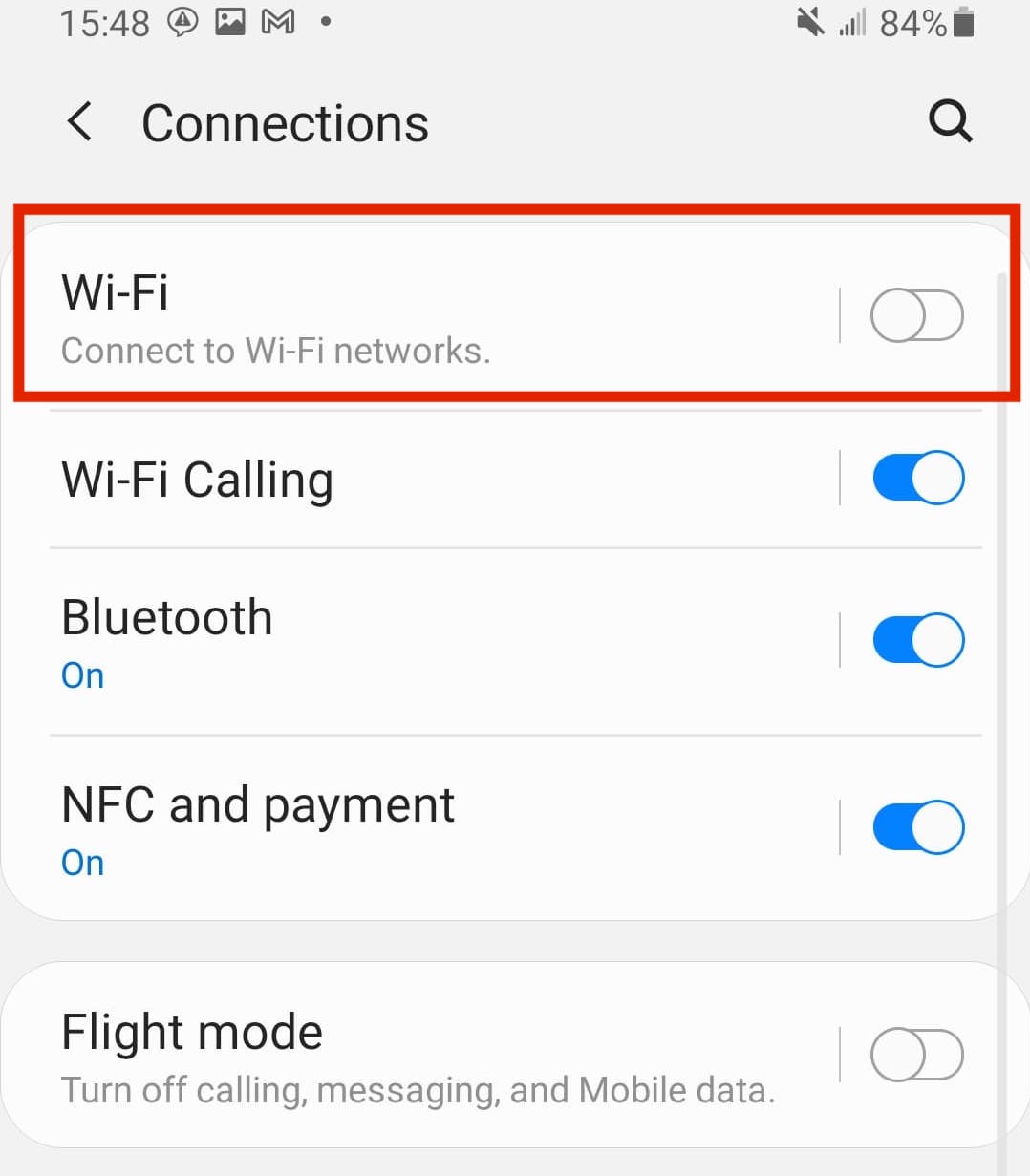
If your test calls were successful over your mobile data but not over wifi, you may have an issue with your network.
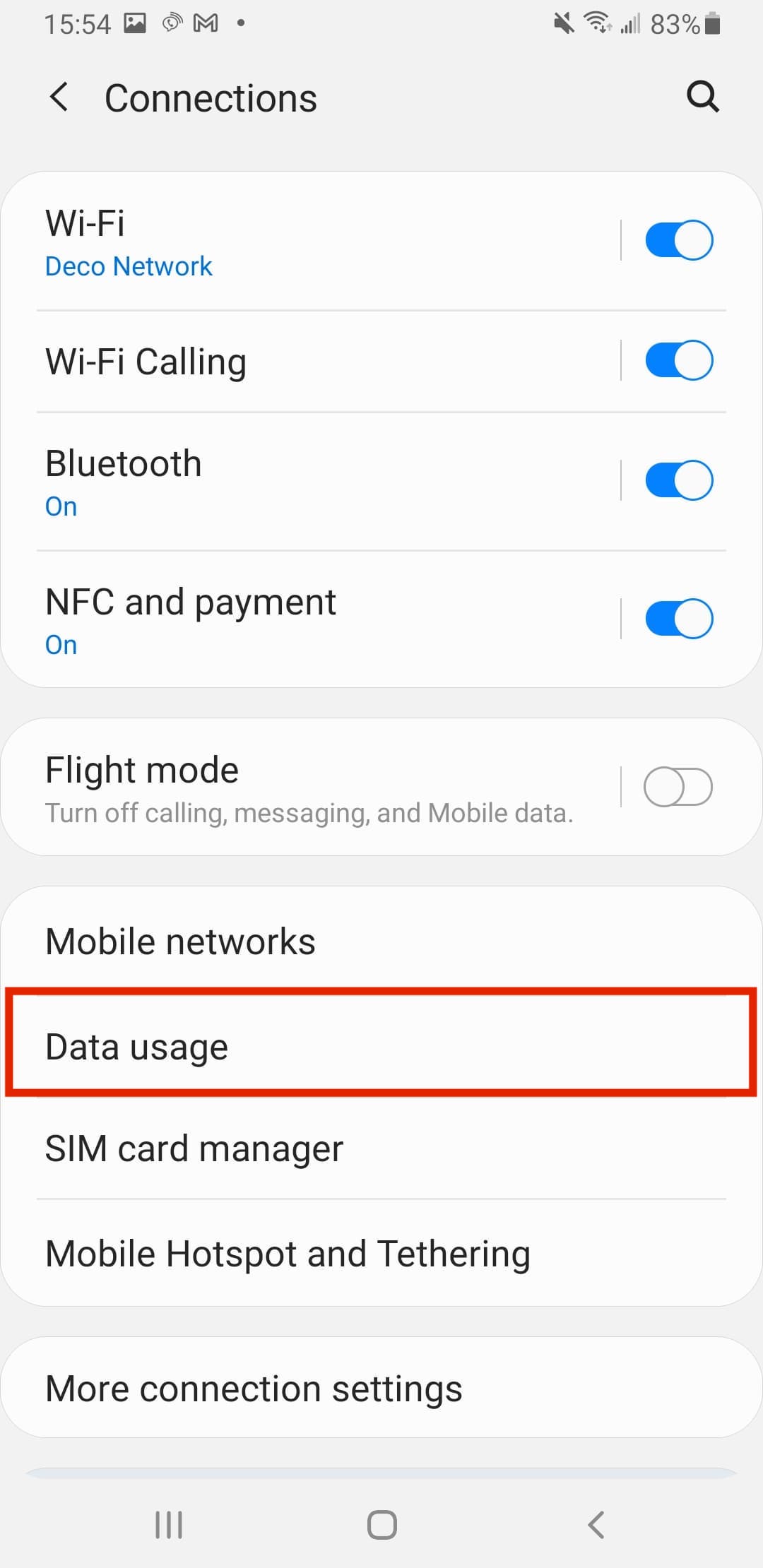
For Android devices, you are able to restrict the Jet app to use only mobile data if required.
Go to your phone Settings, choose Connections, then Data usage. Mobile Data should already be turned on, now turn on Mobile data only apps.
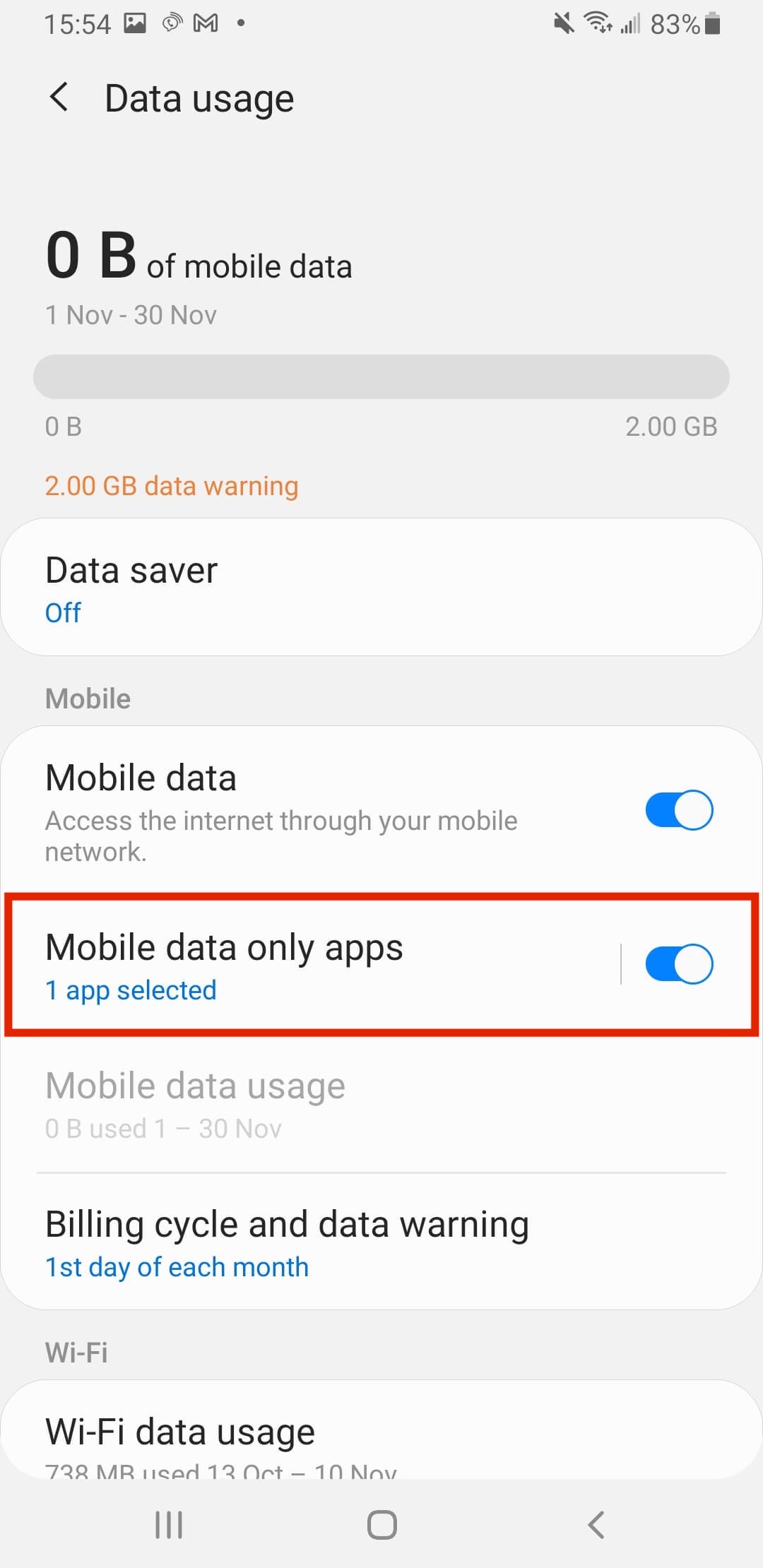
Once enabled, tap this option to open your app list and scroll down to find Jet Soft Phone. Enable the Jet app to use only mobile data.
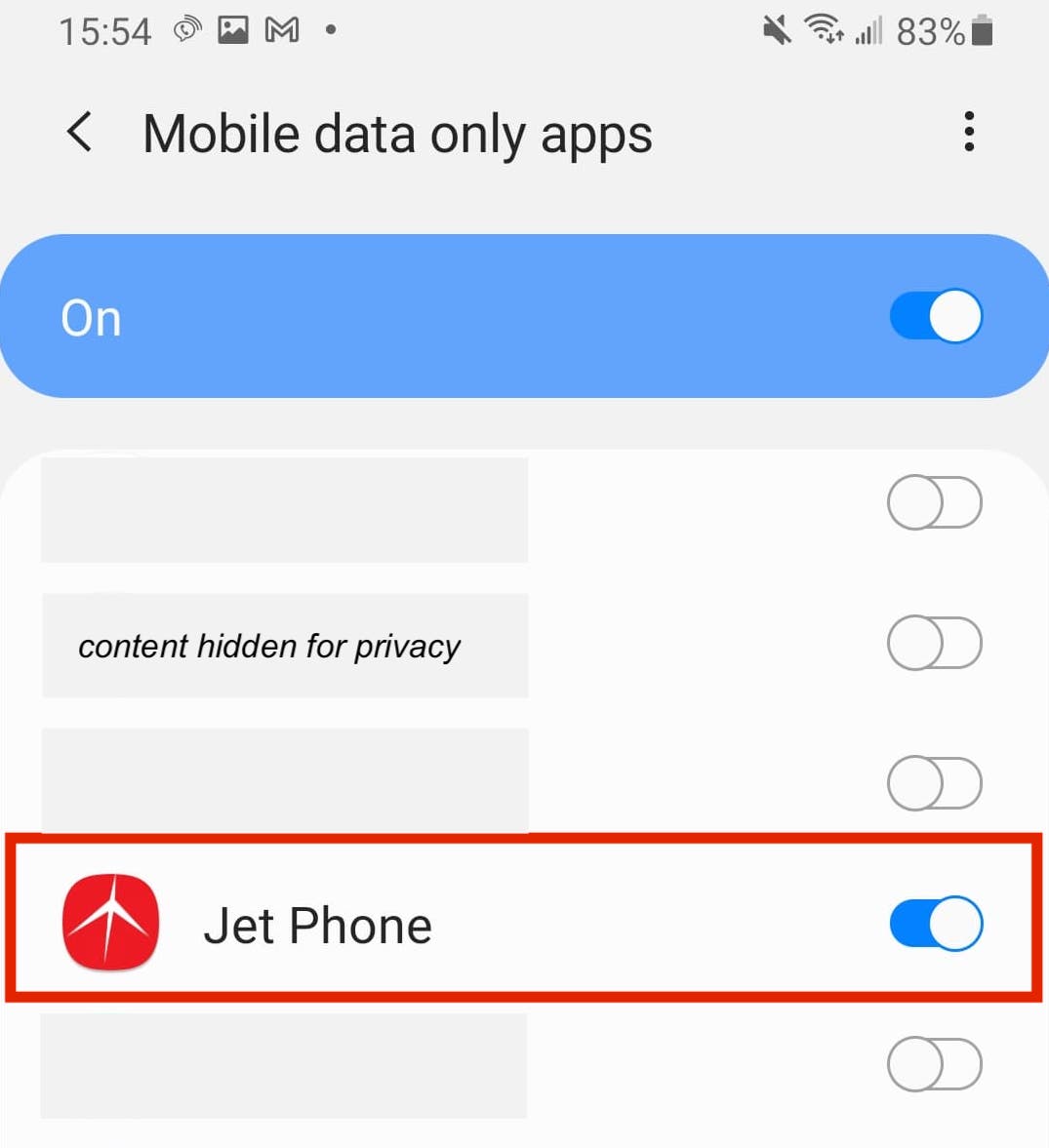
If you are unable to use 4G long term and you are still having issues over wifi, please speak to the provider of your internet connection to investigate further.
You can find more information here: Call Quality & Network Improvements
STEP 5. CHECK YOUR PHONE USER CREDENTIALS
Log into a Jet Soft Phone on a different device using your existing Phone User details
Try a different device if possible (eg: other iPhone), but also device type (eg: desktop app).
More app download options here.
If this was successful, please check your device permissions (eg: Network, Privacy, etc) and ensure you are running the latest versions of all device software and the Jet phone app.
Check all network settings between the two devices are identical.
STEP 6. UNINSTALL
Uninstall the app from your device, restart the device and then install the app again from the Google Play store (search "Jet Soft Phone) or from our Downloads page. Ensure you are accepting every app permission and setup request.
If this works, there may have been an issue between your app and device.
No further action is needed, however, please speak to Jet Support if this issue persists.
If you are seeing an error code, please click here for further information & troubleshooting.
If steps 1-6 have not resolved your issue, please see the instructions for Contacting Support.
Troubleshooting for Mac desktops or laptops
There are 6 easy troubleshooting steps you can try on Mac devices before contacting support.
At the end of every step, please test your phone by placing an outbound call via your Jet Phone app to any number not with Jet Interactive. Remain connected for 5 seconds before hanging up.
(Please note, this number should NOT be a mobile number that is associated with any device you are logged into your Jet phone on).
Then place an inbound call through your services, and try to answer on your Jet Phone app.
If any of these calls are unsuccessful, move on to the next step.
STEP 1. LOG OUT OF YOUR JET APP
Apps that have been left logged in for a while without updating/refreshing your app's connection and memory could just be overloaded.
Please log out of your Jet app and shut the application. Then reopen and log in again
STEP 2. CHECK YOUR NETWORK CONNECTION
Check your computer is connected to the internet. Options include:
- Open a web browser and try to load www.jetinteractive.com.au
- Open YouTube and try to watch this video - https://youtu.be/lFcSrYw-ARY
- Open your search engine and search "best pizza toppings" (drool optional)
You can also do a speedtest on your network to see if you have enough bandwidth to support all your browsing activites.
There are many free options, we recommend Speedtest by Ookla.
STEP 3. CHECK APP NETWORK PERMISSIONS
Please ensure you have the correct permissions enabled on your device.
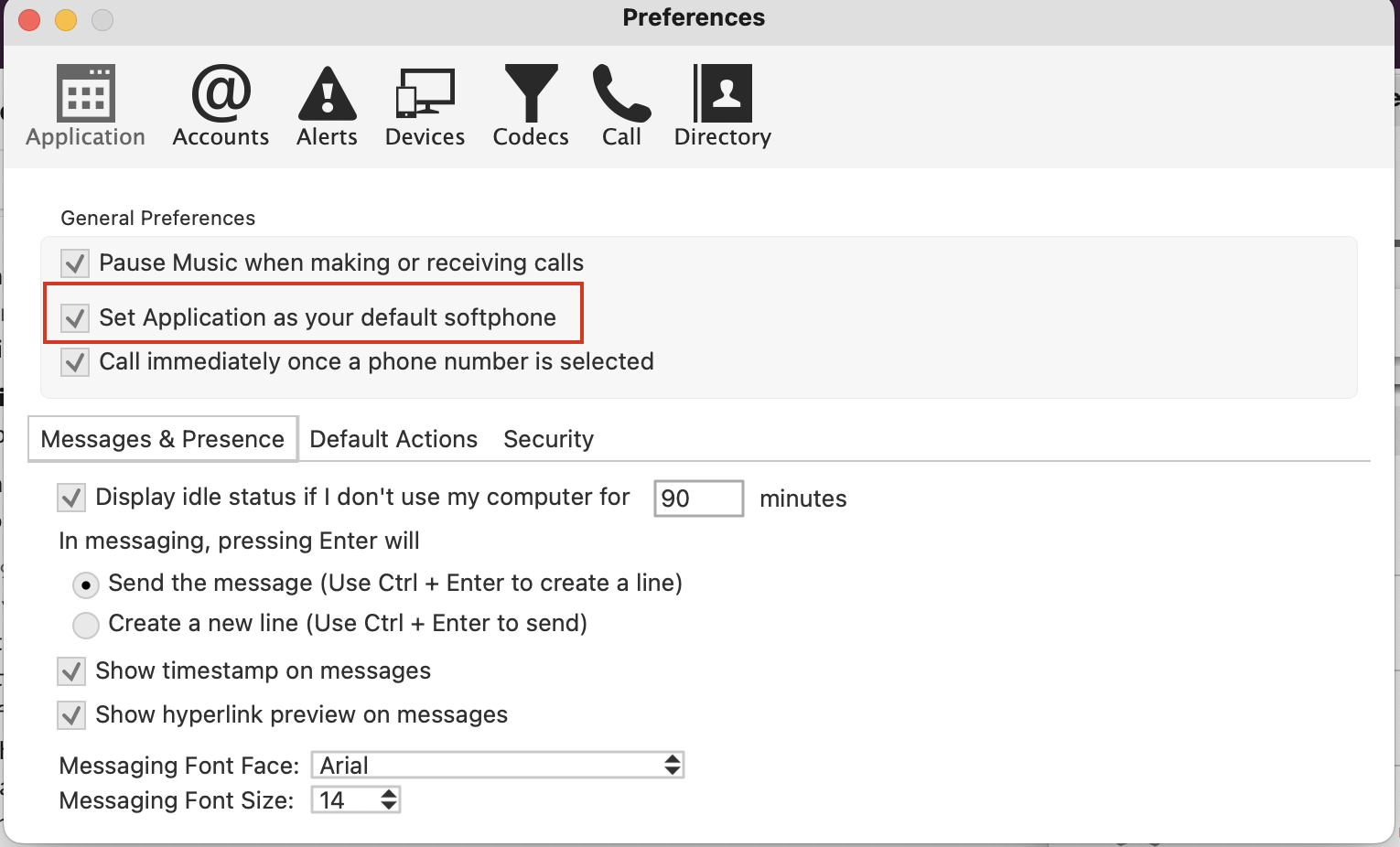
From the app's Jet Phone menu, select Preferences. Ensure your app is enabled as the default softphone.
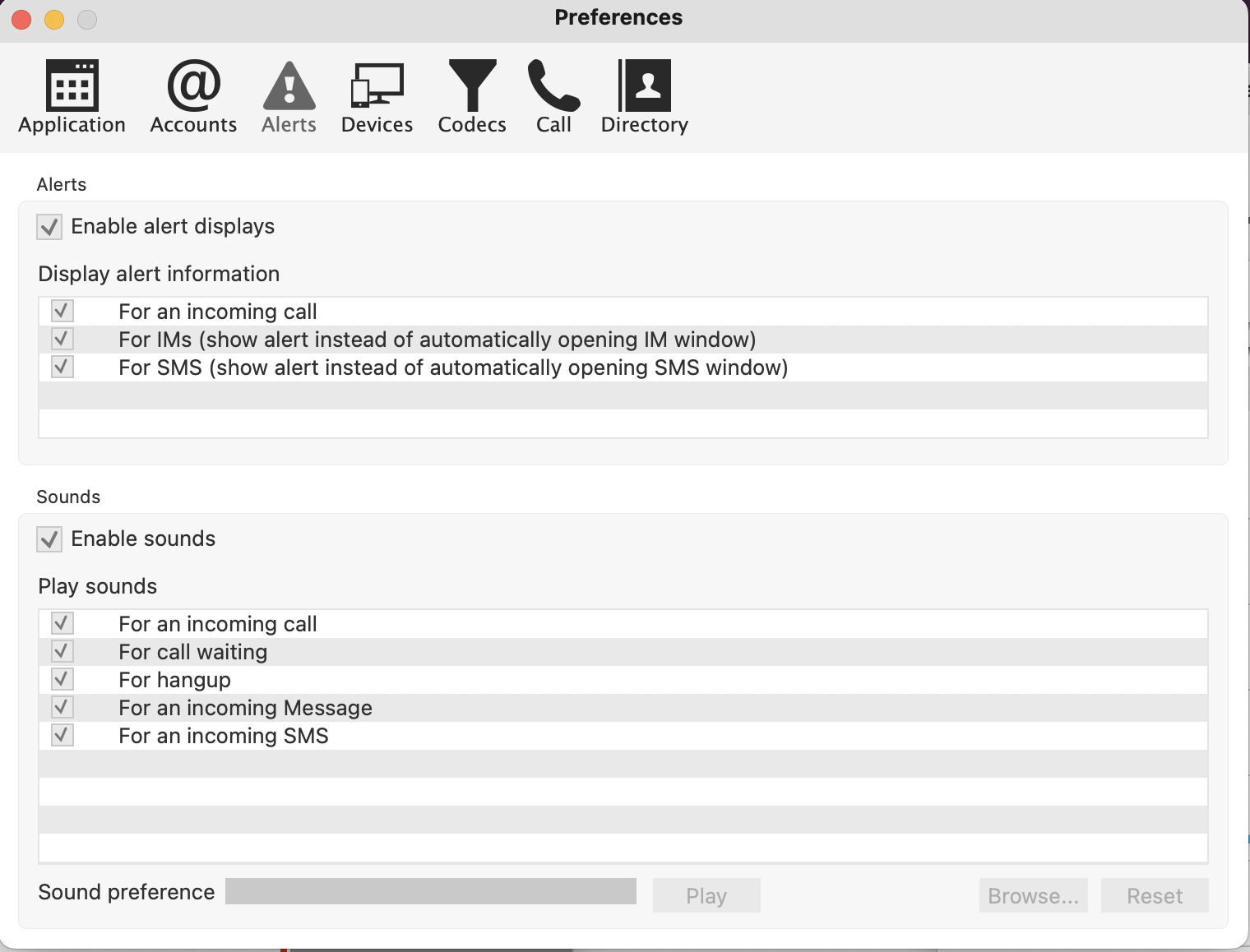
Next, select Alerts. Ensure all sounds and alerts are enabled.
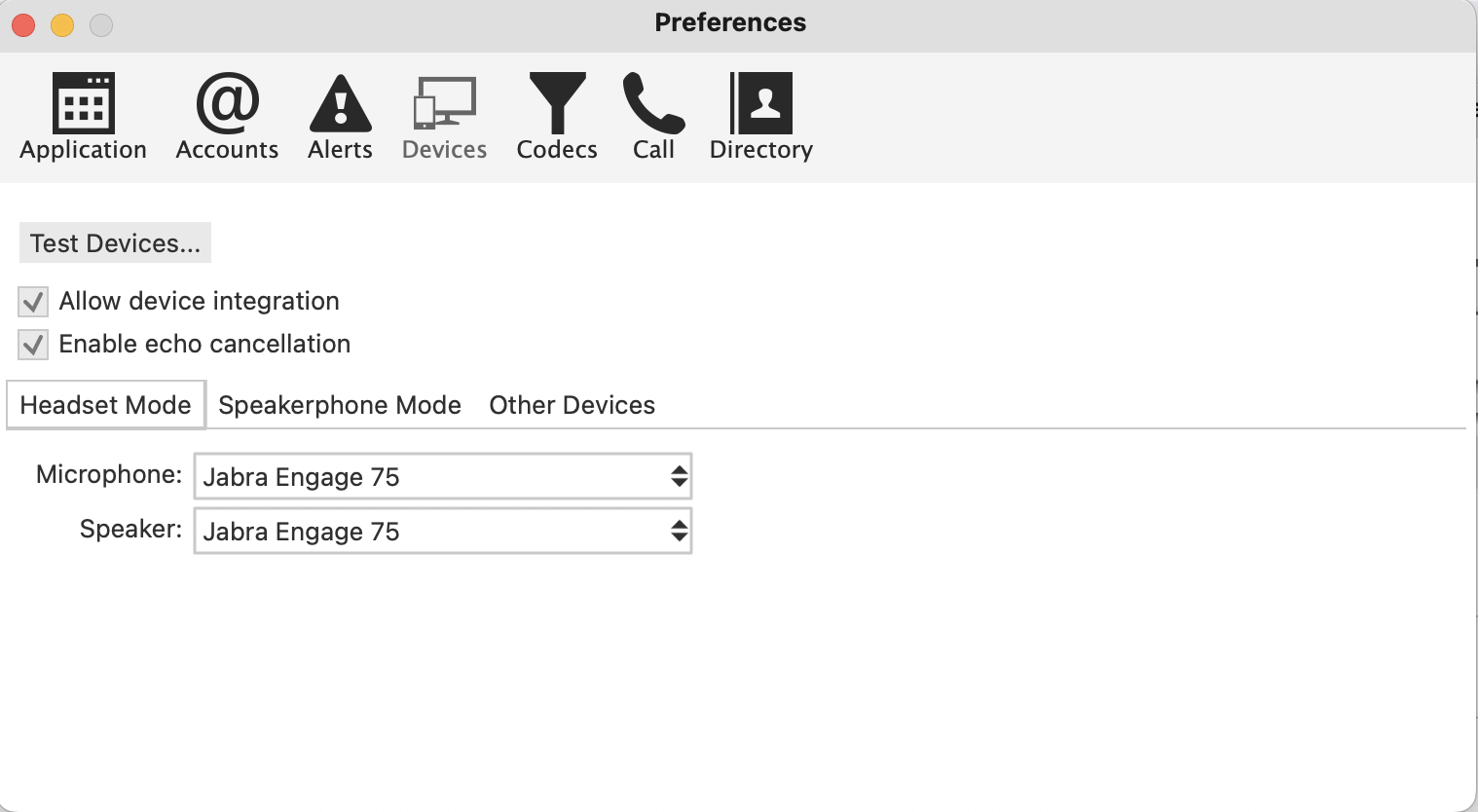
Finally, select Devices and ensure Allow device integration is enabled. If you are also using a headset, ensure this is selected as both your microphone and speaker, and use the Test Devices feature if required.
STEP 4. CHANGE YOUR NETWORK
Try changing the Network your device is connected to. This usually means using your mobile device's data connection (3G/4G/5G) to hotspot your phone's internet connection to your computer instead of using your usual Wifi.
The most common issues are to do with your wifi connection not being optimised to conduct voice calls over the internet. This step is essential to understanding if your wifi network does not have the right configuration to support your phone calls.
If you have used your mobile to do this before, this will usually show up as a fixed option in your wifi menu straight away.
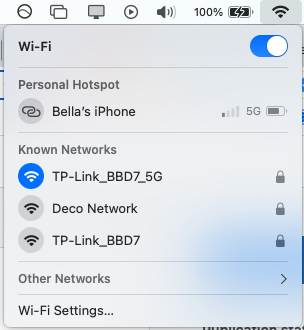
If you have not, please enable your hotspot on your mobile device and then connect your Mac to this new network.
Tip: you may need to turn your Mac wifi off, turn on the hotspot then immediately turn your mac wifi on again to recognise the new connection option.
If you are unable to use 4G long term and you are still having issues over wifi, please speak to the provider of your internet connection to investigate further.
You can find more information here: Call Quality & Network Improvements
STEP 5. CHECK YOUR PHONE USER CREDENTIALS
Log into a Jet Soft Phone on a different device using your existing Phone User details.
Try a different device if possible (eg: iPhone), but also device type (eg: desktop app on windows).
More app download options here.
STEP 6. UNINSTALL
Uninstall the app from your device, restart the device and then install the app again from our Downloads page. Ensure you are accepting every app permission and setup request if asked.
If this works, there may have been an issue between your app and device.
No further action is needed, however, please speak to Jet Support if this issue persists.
If you are seeing an error code, please click here for further information & troubleshooting.
If steps 1-6 have not resolved your issue, please see the instructions for Contacting Support.
Troubleshooting for Windows desktops or laptops
There are 6 easy troubleshooting steps you can try on Mac devices before contacting support.
At the end of every step, please test your phone by placing an outbound call via your Jet Phone app to any number not with Jet Interactive. Remain connected for 5 seconds before hanging up.
(Please note, this number should NOT be a mobile number that is associated with any device you are logged into your Jet phone on).
Then place an inbound call through your services, and try to answer on your Jet Phone app.
If any of these calls are unsuccessful, move on to the next step.
STEP 1. LOG OUT OF YOUR JET APP
Apps that have been left logged in for a while without updating/refreshing your app's connection and memory could just be overloaded.
Please log out of your Jet app and shut the application. Then reopen and log in again
STEP 2. CHECK YOUR NETWORK CONNECTION
Check your computer is connected to the internet. Options include:
- Open a web browser and try to load www.jetinteractive.com.au
- Open YouTube and try to watch this video - https://youtu.be/lFcSrYw-ARY
- Open your search engine and search "best pizza toppings" (drool optional)
You can also do a speedtest on your network to see if you have enough bandwidth to support all your browsing activites.
There are many free options, we recommend Speedtest by Ookla.
STEP 3. CHECK APP NETWORK PERMISSIONS
Please ensure you have the correct permissions enabled on your device.
From the app's Jet Phone menu, select Preferences. Ensure your app is enabled as the default softphone.
Next, select Alerts. Ensure all sounds and alerts are enabled.
Finally, select Devices and ensure Allow device integration is enabled. If you are also using a headset, ensure this is selected as both your microphone and speaker, and use the Test Devices feature if required.
STEP 4. CHANGE YOUR NETWORK
Try changing the Network your device is connected to. This usually means using your mobile device's data connection (3G/4G/5G) to hotspot your phone's internet connection to your computer instead of using your usual Wifi.
The most common issues are to do with your wifi connection not being optimised to conduct voice calls over the internet. This step is essential to understanding if your wifi network does not have the right configuration to support your phone calls.
If you have used your mobile to do this before, this will usually show up as a fixed option in your wifi menu straight away.
If you have not, please enable your hotspot on your mobile device and then connect your Mac to this new network.
Tip: you may need to turn your Mac wifi off, turn on the hotspot then immediately turn your mac wifi on again to recognise the new connection option.
If you are unable to use 4G long term and you are still having issues over wifi, please speak to the provider of your internet connection to investigate further.
You can find more information here: Call Quality & Network Improvements
STEP 5. CHECK YOUR PHONE USER CREDENTIALS
Log into a Jet Soft Phone on a different device using your existing Phone User details.
Try a different device if possible (eg: iPhone), but also device type (eg: desktop app on windows).
More app download options here.
STEP 6. UNINSTALL
Uninstall the app from your device, restart the device and then install the app again from our Downloads page. Ensure you are accepting every app permission and setup request if asked.
If this works, there may have been an issue between your app and device.
No further action is needed, however, please speak to Jet Support if this issue persists.
If you are seeing an error code, please click here for further information & troubleshooting.
If steps 1-6 have not resolved your issue, please see the instructions for Contacting Support.
CONTACTING SUPPORT
If you have followed the steps above for your device and are still experiencing issues, please submit a ticket in the top right of this page and ensure you include as much of the following information as possible.
Information in BOLD is required for Jet Team to locate your issue and assist further.
Required User Information:
-
Device experiencing the issue (including make, model and OS version - eg: iPhone 11 using iOS 14.1)
-
The results of the 4 troubleshooting steps above. (do not skip these steps, even if networks/features were working previously)
-
User experiencing the issue (please include app username and extension number)
-
The SIP error code you are seeing (if applicable)
-
Screenshots or videos of the issue you are experiencing.
-
Your public IP address (to find this, simply Google “what’s my IP”)
Required Call Information (if calls are your issue):
-
Is this an inbound or outbound call
-
The date & time of the failed call
-
The number being called (outbound) or making the call (inbound)
-
Does this call work when calling from a non-Jet Phone (eg: Telstra, Optus, Vodafone)
If you are asked to send a log from your device, you can find the steps here: